Cirkit Designer LogoCirkit DesignerYour all-in-one circuit design IDE Launch Cirkit Designer App

How to Use Sensor board: Examples, Pinouts, and Specs

Image of Sensor boardDesign with Sensor board in Cirkit Designer

Introduction

A sensor board is a versatile electronic component that integrates multiple sensors to detect and measure various physical phenomena such as temperature, humidity, light, and motion. These boards often include a microcontroller for processing sensor data and may feature communication interfaces for transmitting data to other devices or systems. Sensor boards are widely used in applications such as environmental monitoring, home automation, robotics, and IoT (Internet of Things) projects.

Explore Projects Built with Sensor board

Use Cirkit Designer to design, explore, and prototype these projects online. Some projects support real-time simulation. Click "Open Project" to start designing instantly!
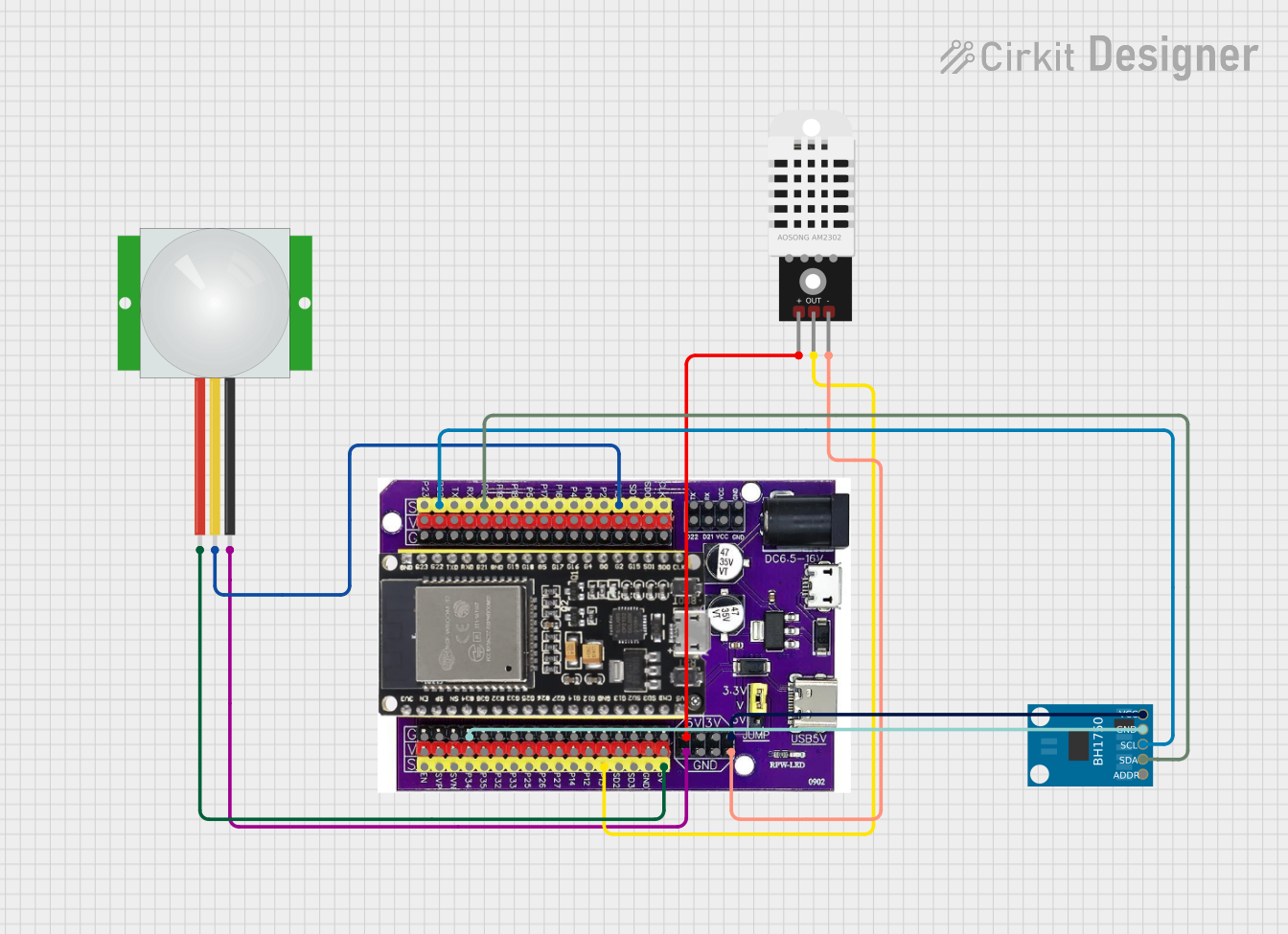
Image of ESP32-Based Environmental Monitoring System with Motion Detection: A project utilizing Sensor board in a practical application
ESP32-Based Environmental Monitoring System with Motion Detection

This circuit features an ESP32 microcontroller on a baseboard that interfaces with a PIR sensor for motion detection, a DHT22 sensor for measuring temperature and humidity, and a BH1750 sensor for detecting ambient light levels. The ESP32 is configured to communicate with the BH1750 using I2C protocol, with GPIO22 and GPIO21 serving as the SCL and SDA lines, respectively. Power is supplied to the sensors from the ESP32's voltage output pins, and sensor outputs are connected to designated GPIO pins for data acquisition.

Open Project in Cirkit Designer

Common Applications and Use Cases

Technical Specifications

Below are the general technical specifications for a typical sensor board. Note that specific models may vary in their exact features and ratings.

Key Technical Details

Pin Configuration and Descriptions

The following table outlines the typical pin configuration for a sensor board:

Pin Label Description
1 VCC Power supply input (3.3V or 5V DC)
2 GND Ground connection
3 SDA I2C data line for communication
4 SCL I2C clock line for communication
5 TX UART transmit pin for serial communication
6 RX UART receive pin for serial communication
7 INT Interrupt pin for motion or event detection
8 A0 Analog input pin for external sensors or additional data acquisition
9 D0 Digital output pin for triggering external devices (e.g., relays, LEDs)
10 RESET Reset pin to restart the microcontroller

Usage Instructions

How to Use the Sensor Board in a Circuit

  1. Power the Board: Connect the VCC pin to a 3.3V or 5V power source and the GND pin to ground.
  2. Connect Communication Lines:
    • For I2C: Connect the SDA and SCL pins to the corresponding pins on your microcontroller.
    • For UART: Connect the TX and RX pins to the UART pins on your microcontroller.
  3. Read Sensor Data:
    • Use the appropriate communication protocol (I2C, SPI, or UART) to query the sensor data.
    • Refer to the sensor board's datasheet for specific register addresses and commands.
  4. Process Data: Use the microcontroller to process the sensor data and perform actions based on the readings.
  5. Optional Connections:
    • Use the INT pin to detect motion or other events.
    • Connect external sensors or devices to the A0 or D0 pins as needed.

Important Considerations and Best Practices

Example Code for Arduino UNO

Below is an example of how to interface a sensor board with an Arduino UNO using the I2C protocol:

#include <Wire.h> // Include the Wire library for I2C communication

#define SENSOR_ADDR 0x40 // Replace with the I2C address of your sensor board

void setup() {
  Wire.begin(); // Initialize I2C communication
  Serial.begin(9600); // Start serial communication for debugging
  Serial.println("Sensor Board Initialization...");
}

void loop() {
  Wire.beginTransmission(SENSOR_ADDR); // Start communication with the sensor board
  Wire.write(0x00); // Replace with the register address to read data
  Wire.endTransmission();
  
  Wire.requestFrom(SENSOR_ADDR, 2); // Request 2 bytes of data from the sensor
  if (Wire.available() == 2) {
    int data = Wire.read() << 8 | Wire.read(); // Combine two bytes into a single value
    Serial.print("Sensor Data: ");
    Serial.println(data); // Print the sensor data to the serial monitor
  } else {
    Serial.println("Error: No data received from sensor board.");
  }
  
  delay(1000); // Wait for 1 second before the next reading
}

Troubleshooting and FAQs

Common Issues and Solutions

  1. No Data Received from the Sensor Board:

    • Solution: Check the I2C address of the sensor board and ensure it matches the address in your code.
    • Tip: Use an I2C scanner sketch to detect the board's address.
  2. Incorrect Sensor Readings:

    • Solution: Verify that the board is powered correctly and that the sensors are not exposed to extreme conditions.
    • Tip: Calibrate the sensors if required (refer to the datasheet for calibration instructions).
  3. Communication Errors:

    • Solution: Ensure proper connections for SDA, SCL, TX, and RX pins. Check for loose wires or poor soldering.
    • Tip: Use pull-up resistors on the I2C lines if not already present.
  4. Board Not Powering On:

    • Solution: Verify the power supply voltage and current. Ensure the VCC and GND connections are secure.

FAQs