
How to Use USB Connectors: Examples, Pinouts, and Specs
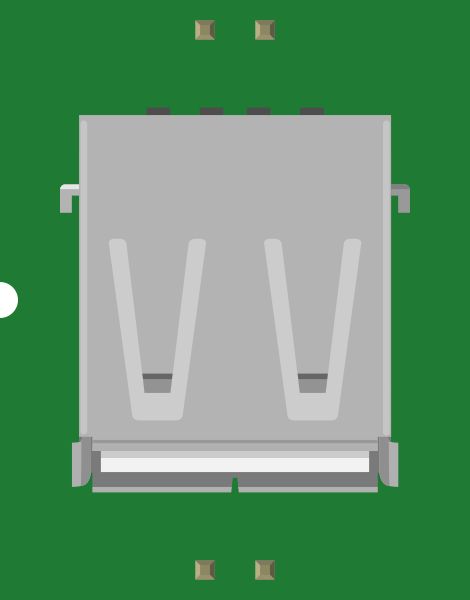
 Design with USB Connectors in Cirkit Designer
Introduction
USB (Universal Serial Bus) connectors are standardized interfaces designed for connecting electronic devices to computers, peripherals, and power sources. They facilitate data transfer, device communication, and power delivery. USB connectors are widely used in consumer electronics, including smartphones, laptops, printers, external storage devices, and more. Their versatility and ease of use have made them a universal standard in modern electronics.
Explore Projects Built with USB Connectors
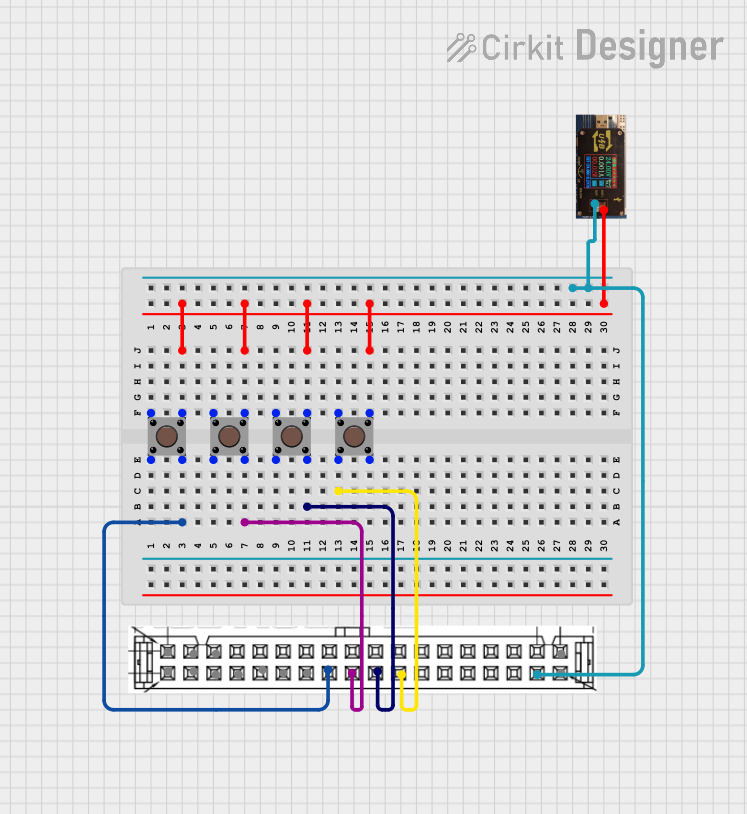 Open Project in Cirkit Designer
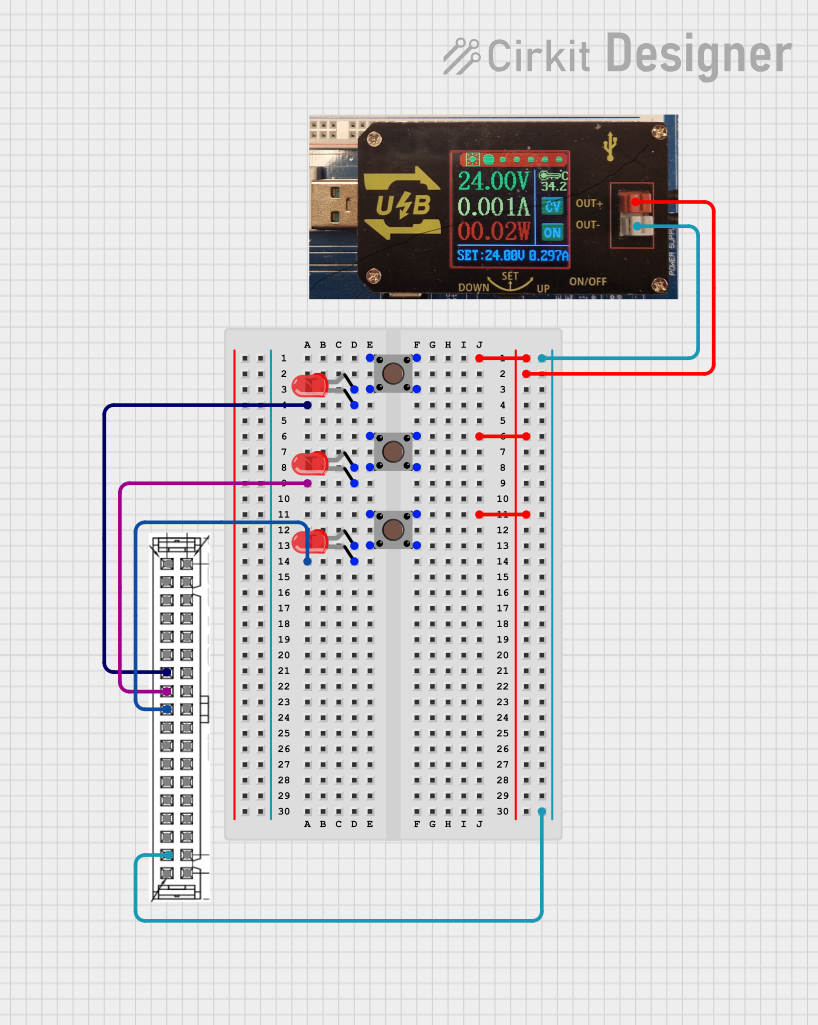 Open Project in Cirkit Designer
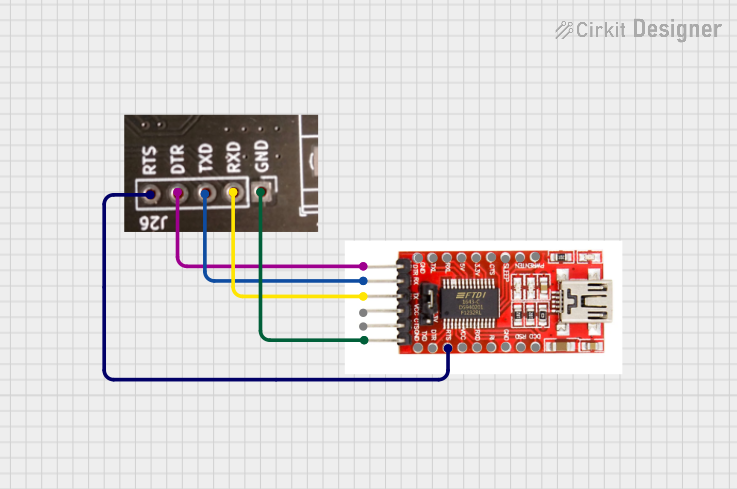 Open Project in Cirkit Designer
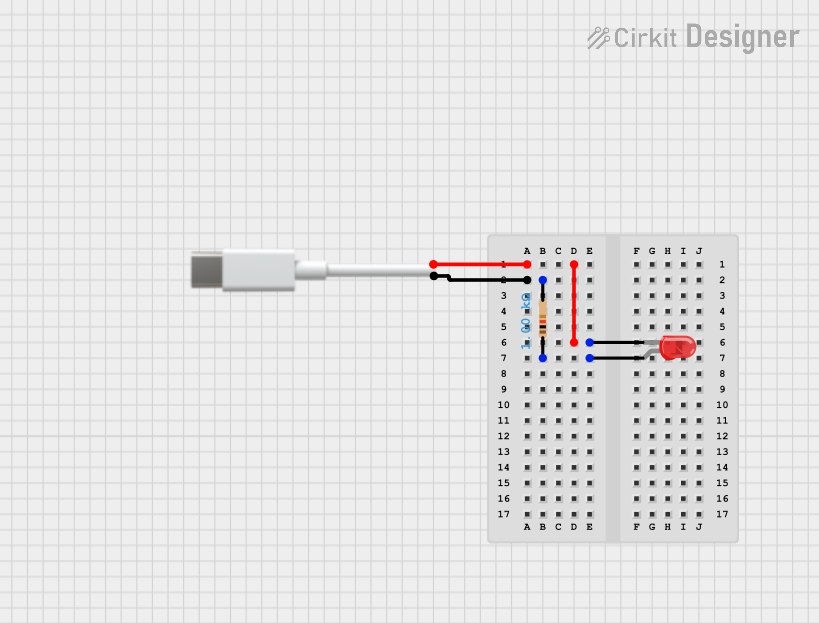 Open Project in Cirkit Designer
Explore Projects Built with USB Connectors
Open Project in Cirkit DesignerOpen Project in Cirkit DesignerOpen Project in Cirkit DesignerOpen Project in Cirkit DesignerCommon Applications and Use Cases
- Data Transfer: Connecting external storage devices, cameras, and other peripherals to computers.
- Power Delivery: Charging smartphones, tablets, and other portable devices.
- Peripheral Connectivity: Enabling communication with keyboards, mice, printers, and game controllers.
- Audio/Video Transmission: Used in USB-C for transmitting audio and video signals to monitors and TVs.
Technical Specifications
Key Technical Details
- Voltage Rating: 5V (standard), up to 20V for USB Power Delivery (USB-PD).
- Current Rating: Typically 500mA to 3A, depending on the USB version.
- Data Transfer Speeds:
- USB 2.0: Up to 480 Mbps
- USB 3.0: Up to 5 Gbps
- USB 3.1/3.2: Up to 10 Gbps
- USB4: Up to 40 Gbps
- Connector Types: USB-A, USB-B, Mini-USB, Micro-USB, USB-C.
- Durability: Rated for 1,500 to 10,000 insertion/removal cycles, depending on the type.
Pin Configuration and Descriptions
USB-A Connector Pinout
| Pin Number | Name | Description |
|---|---|---|
| 1 | VBUS | +5V Power |
| 2 | D- | Data Line (negative) |
| 3 | D+ | Data Line (positive) |
| 4 | GND | Ground |
USB-C Connector Pinout (Simplified)
| Pin Number | Name | Description |
|---|---|---|
| A1, B1 | GND | Ground |
| A4, B4 | VBUS | +5V Power |
| A6, B6 | D+ | Data Line (positive) |
| A7, B7 | D- | Data Line (negative) |
| A5, B5 | CC | Configuration Channel for power and data |
Usage Instructions
How to Use USB Connectors in a Circuit
- Identify the Connector Type: Determine the type of USB connector (e.g., USB-A, USB-C) required for your application.
- Connect Power and Ground: Ensure the VBUS pin is connected to a regulated 5V power source and the GND pin to the circuit ground.
- Data Lines: Connect the D+ and D- pins to the appropriate data communication lines of your microcontroller or device.
- Use Proper Resistors for USB-C: For USB-C, connect pull-up or pull-down resistors on the CC pins to indicate the power role (source or sink).
- Secure the Connector: Mount the USB connector securely on the PCB to prevent mechanical stress.
Important Considerations and Best Practices
- Voltage Regulation: Ensure the power supply provides a stable 5V output to avoid damaging connected devices.
- Data Line Protection: Use ESD protection diodes on the D+ and D- lines to prevent electrostatic discharge damage.
- Cable Quality: Use high-quality USB cables to ensure reliable data transfer and power delivery.
- USB-C Orientation: USB-C connectors are reversible, so ensure proper pin mapping for both orientations.
Example: Connecting a USB-C Connector to an Arduino UNO
Below is an example of how to connect a USB-C breakout board to an Arduino UNO for power and data communication.
// Example: Reading data from a USB-C connected device using Arduino UNO
// Ensure the USB-C breakout board is properly connected to the Arduino pins.

#include <SoftwareSerial.h> // Include library for serial communication

SoftwareSerial usbSerial(10, 11); // RX = Pin 10, TX = Pin 11

void setup() {
  Serial.begin(9600);        // Initialize Serial Monitor at 9600 baud
  usbSerial.begin(9600);     // Initialize USB-C communication at 9600 baud
  Serial.println("USB-C Communication Initialized");
}

void loop() {
  if (usbSerial.available()) {
    char data = usbSerial.read(); // Read data from USB-C device
    Serial.print("Received: ");
    Serial.println(data);         // Print received data to Serial Monitor
  }
}
Troubleshooting and FAQs
Common Issues
No Power Delivery:
- Cause: Incorrect connection of VBUS or GND pins.
- Solution: Verify the power and ground connections. Ensure the power source provides 5V.
Data Transfer Fails:
- Cause: Misconnection of D+ and D- lines or poor cable quality.
- Solution: Check the data line connections and use a high-quality USB cable.
USB-C Not Recognized:
- Cause: Missing pull-up or pull-down resistors on CC pins.
- Solution: Add appropriate resistors to the CC pins to indicate the power role.
FAQs
Q: Can USB connectors handle higher voltages for fast charging?
A: Yes, USB-C with USB Power Delivery (USB-PD) supports up to 20V for fast charging.Q: How do I protect my circuit from USB overcurrent?
A: Use a polyfuse or current-limiting IC on the VBUS line to prevent overcurrent damage.Q: Are USB-C connectors backward compatible with USB-A?
A: Yes, with the use of appropriate adapters or cables, USB-C can interface with USB-A devices.