Cirkit Designer LogoCirkit DesignerYour all-in-one circuit design IDE Launch Cirkit Designer App

How to Use VCC 5V: Examples, Pinouts, and Specs

Image of VCC 5VDesign with VCC 5V in Cirkit Designer

Introduction

Explore Projects Built with VCC 5V

Use Cirkit Designer to design, explore, and prototype these projects online. Some projects support real-time simulation. Click "Open Project" to start designing instantly!
Image of High Voltage Generator with Push Switch Activation: A project utilizing VCC 5V in a practical application

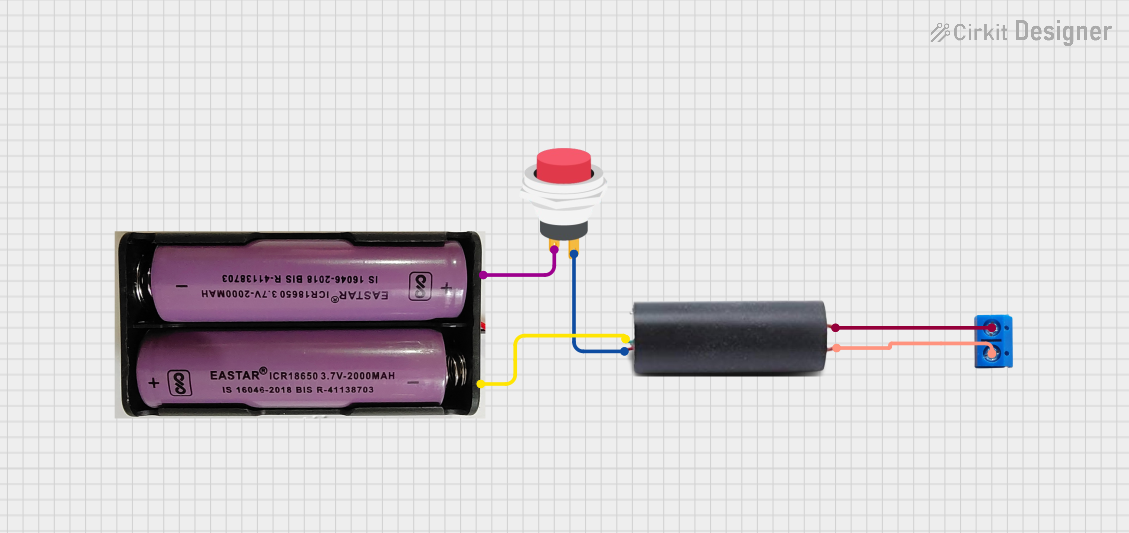
High Voltage Generator with Push Switch Activation

This circuit features a high voltage generator connected to a terminal PCB for output, with its power supply controlled by a 2-pin push switch. The high voltage generator's VCC is connected through the switch, allowing the user to turn the high voltage output on and off. The circuit is powered by a 7.4V battery, with the positive terminal connected to the switch and the negative terminal connected to the generator's ground.

Open Project in Cirkit Designer
Technical Specifications

Pin Configuration and Descriptions

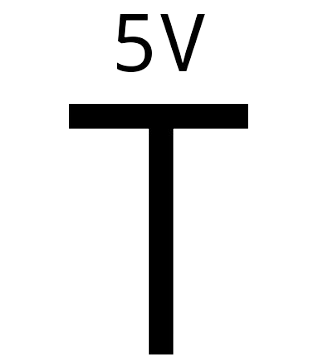
The VCC 5V is typically represented as a pin or terminal in circuits. Below is a general description of its connections:

Pin Name Description
VCC Positive 5V power supply output
GND Ground connection (0V reference point)

Usage Instructions

How to Use the VCC 5V in a Circuit

  1. Connect the Power Source: Ensure the power source (e.g., USB, battery, or regulated power supply) provides a stable 5V output.
  2. Polarity Check: Always connect the VCC pin to the positive terminal of the circuit and the GND pin to the ground terminal.
  3. Powering Components: Use the VCC 5V to power digital ICs, sensors, and modules that require a 5V input. Ensure the total current draw does not exceed the power source's capacity.
  4. Bypass Capacitors: Add a 0.1µF ceramic capacitor and a 10µF electrolytic capacitor near the VCC pin to filter noise and stabilize the voltage.

Important Considerations and Best Practices

Example: Using VCC 5V with an Arduino UNO

The Arduino UNO has a built-in 5V VCC pin that can be used to power external components. Below is an example of powering an LED with a resistor using the VCC 5V pin:

// Example: Powering an LED using the Arduino UNO's VCC 5V pin

// Define the pin connected to the LED
const int ledPin = 13; // Pin 13 is connected to the onboard LED

void setup() {
  pinMode(ledPin, OUTPUT); // Set the LED pin as an output
}

void loop() {
  digitalWrite(ledPin, HIGH); // Turn the LED on
  delay(1000);                // Wait for 1 second
  digitalWrite(ledPin, LOW);  // Turn the LED off
  delay(1000);                // Wait for 1 second
}

Troubleshooting and FAQs

Common Issues

  1. Voltage Drop: The VCC 5V output is lower than expected.

    • Solution: Check the power source's capacity and ensure it can supply sufficient current. Verify connections and add bypass capacitors to stabilize the voltage.
  2. Overheating: The voltage regulator or power source becomes hot.

    • Solution: Reduce the current draw by disconnecting unnecessary components. Use a heatsink or switch to a more efficient power source.
  3. No Power Output: The circuit does not receive 5V from the VCC pin.

    • Solution: Verify the polarity of the connections. Check for loose wires or damaged components.

FAQs

By following these guidelines, you can effectively use the VCC 5V in your electronic projects.