
How to Use Stepper motor driver: Examples, Pinouts, and Specs
 Design with Stepper motor driver in Cirkit Designer
Introduction
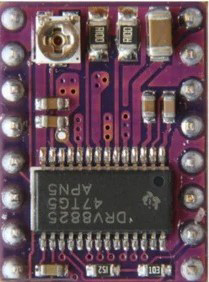
A stepper motor driver is a device that controls the operation of a stepper motor by sending it precise electrical pulses. These pulses determine the motor's movement, allowing for accurate positioning and speed control. Stepper motor drivers are essential in applications requiring precise motion control, such as 3D printers, CNC machines, robotics, and automated systems.
By managing the current and voltage supplied to the motor coils, the driver ensures smooth operation and prevents damage to the motor. Many stepper motor drivers also include features like microstepping, which improves resolution and reduces vibration.
Explore Projects Built with Stepper motor driver
 Open Project in Cirkit Designer
 Open Project in Cirkit Designer
 Open Project in Cirkit Designer
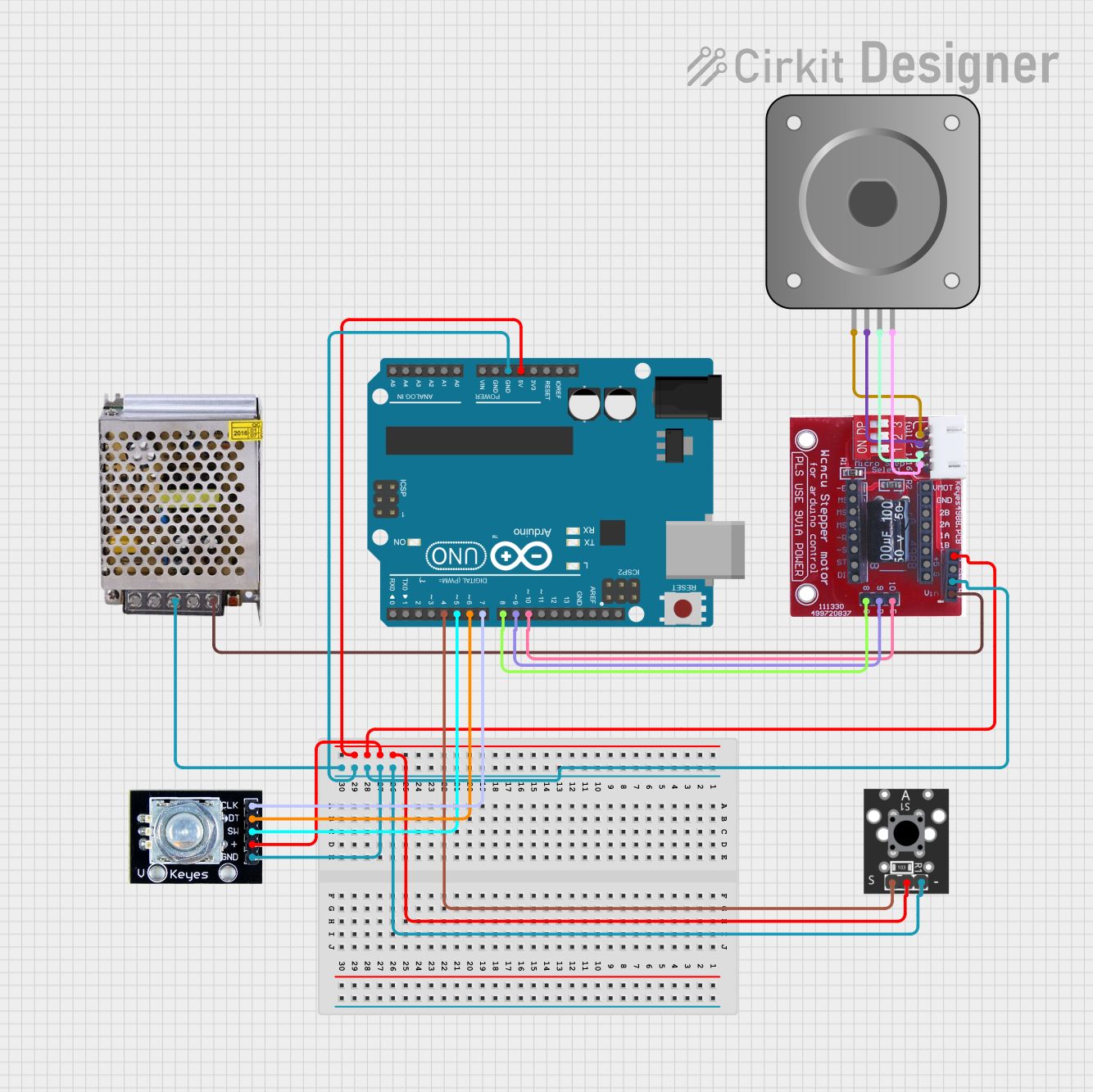 Open Project in Cirkit Designer
Explore Projects Built with Stepper motor driver
Open Project in Cirkit DesignerOpen Project in Cirkit DesignerOpen Project in Cirkit DesignerOpen Project in Cirkit DesignerTechnical Specifications
Below are the general technical specifications for a typical stepper motor driver. Note that specific models may vary, so always refer to the datasheet of the driver you are using.
Key Specifications
- Input Voltage Range: 8V to 45V (varies by model)
- Output Current: Up to 2A per phase (adjustable via potentiometer)
- Microstepping Modes: Full step, half step, 1/4 step, 1/8 step, 1/16 step
- Control Interface: Step and direction pins
- Protection Features: Overcurrent, overtemperature, and undervoltage lockout
- Operating Temperature: -20°C to 85°C
Pin Configuration and Descriptions
The following table describes the pinout for a common stepper motor driver, such as the A4988 or DRV8825.
| Pin Name | Description |
|---|---|
| VCC | Power supply input for the logic circuit (typically 3.3V or 5V). |
| GND | Ground connection for both logic and motor power. |
| VMOT | Motor power supply input (e.g., 8V to 45V). |
| STEP | Input pin for step pulses. Each pulse moves the motor one step. |
| DIR | Direction control pin. High or low determines the motor's rotation direction. |
| ENABLE | Enables or disables the motor driver (active low). |
| MS1, MS2, MS3 | Microstepping mode selection pins. Configure for full, half, or microstepping. |
| RESET | Resets the driver to its initial state (active low). |
| SLEEP | Puts the driver into low-power sleep mode (active low). |
| OUT1, OUT2 | Outputs connected to one motor coil. |
| OUT3, OUT4 | Outputs connected to the other motor coil. |
Usage Instructions
How to Use the Stepper Motor Driver in a Circuit
Power Connections:
- Connect the motor power supply to the VMOT pin and ground to the GND pin.
- Connect the logic power supply (3.3V or 5V) to the VCC pin and ground to the same GND pin.
Motor Connections:
- Connect the stepper motor coils to the OUT1, OUT2, OUT3, and OUT4 pins. Refer to the motor's datasheet to identify the coil pairs.
Control Pins:
- Connect the STEP and DIR pins to the microcontroller's digital output pins.
- Optionally, connect the ENABLE, RESET, and SLEEP pins to control the driver's state.
Microstepping Configuration:
- Use the MS1, MS2, and MS3 pins to set the desired microstepping mode. Refer to the driver's datasheet for the configuration table.
Adjust Current Limit:
- Use the onboard potentiometer to set the current limit based on your motor's rated current. This prevents overheating and ensures optimal performance.
Arduino UNO Example Code
Below is an example of how to control a stepper motor driver using an Arduino UNO.
// Define pin connections
#define STEP_PIN 3  // Pin connected to the STEP input of the driver
#define DIR_PIN 4   // Pin connected to the DIR input of the driver

void setup() {
  pinMode(STEP_PIN, OUTPUT); // Set STEP pin as output
  pinMode(DIR_PIN, OUTPUT);  // Set DIR pin as output

  digitalWrite(DIR_PIN, HIGH); // Set initial direction (HIGH = clockwise)
}

void loop() {
  // Generate step pulses to move the motor
  digitalWrite(STEP_PIN, HIGH); // Set STEP pin HIGH
  delayMicroseconds(1000);      // Wait 1 millisecond
  digitalWrite(STEP_PIN, LOW);  // Set STEP pin LOW
  delayMicroseconds(1000);      // Wait 1 millisecond
}
Important Considerations and Best Practices
- Current Limiting: Always set the current limit on the driver to match your motor's rated current. Exceeding this can damage the motor or driver.
- Heat Dissipation: Use a heatsink or active cooling if the driver becomes too hot during operation.
- Power Supply: Ensure the motor power supply provides sufficient current for your motor's requirements.
- Wiring: Double-check all connections before powering the circuit to avoid short circuits or damage.
Troubleshooting and FAQs
Common Issues and Solutions
Motor Not Moving:
- Check the power supply connections and ensure the driver is receiving the correct voltage.
- Verify that the STEP and DIR pins are correctly connected to the microcontroller.
- Ensure the motor coils are connected to the correct output pins.
Motor Vibrates but Does Not Rotate:
- Verify the wiring of the motor coils. Incorrect connections can cause erratic behavior.
- Check the microstepping configuration and ensure it matches your intended setup.
Driver Overheating:
- Reduce the current limit using the potentiometer.
- Add a heatsink or fan to improve cooling.
Motor Skipping Steps:
- Increase the step pulse frequency gradually to avoid exceeding the motor's speed capabilities.
- Ensure the power supply can handle the motor's current requirements.
FAQs
Can I use the stepper motor driver with a 12V power supply? Yes, most stepper motor drivers support a wide voltage range, including 12V. Check the datasheet for your specific model.
What happens if I exceed the current limit? Exceeding the current limit can cause the driver to overheat or enter thermal shutdown. It may also damage the motor.
Do I need to use all the control pins? No, only the STEP and DIR pins are essential for basic operation. Other pins like ENABLE, RESET, and SLEEP are optional.
By following this documentation, you can effectively use a stepper motor driver in your projects for precise motion control.