
How to Use LCD 20X4: Examples, Pinouts, and Specs
 Design with LCD 20X4 in Cirkit Designer
Introduction
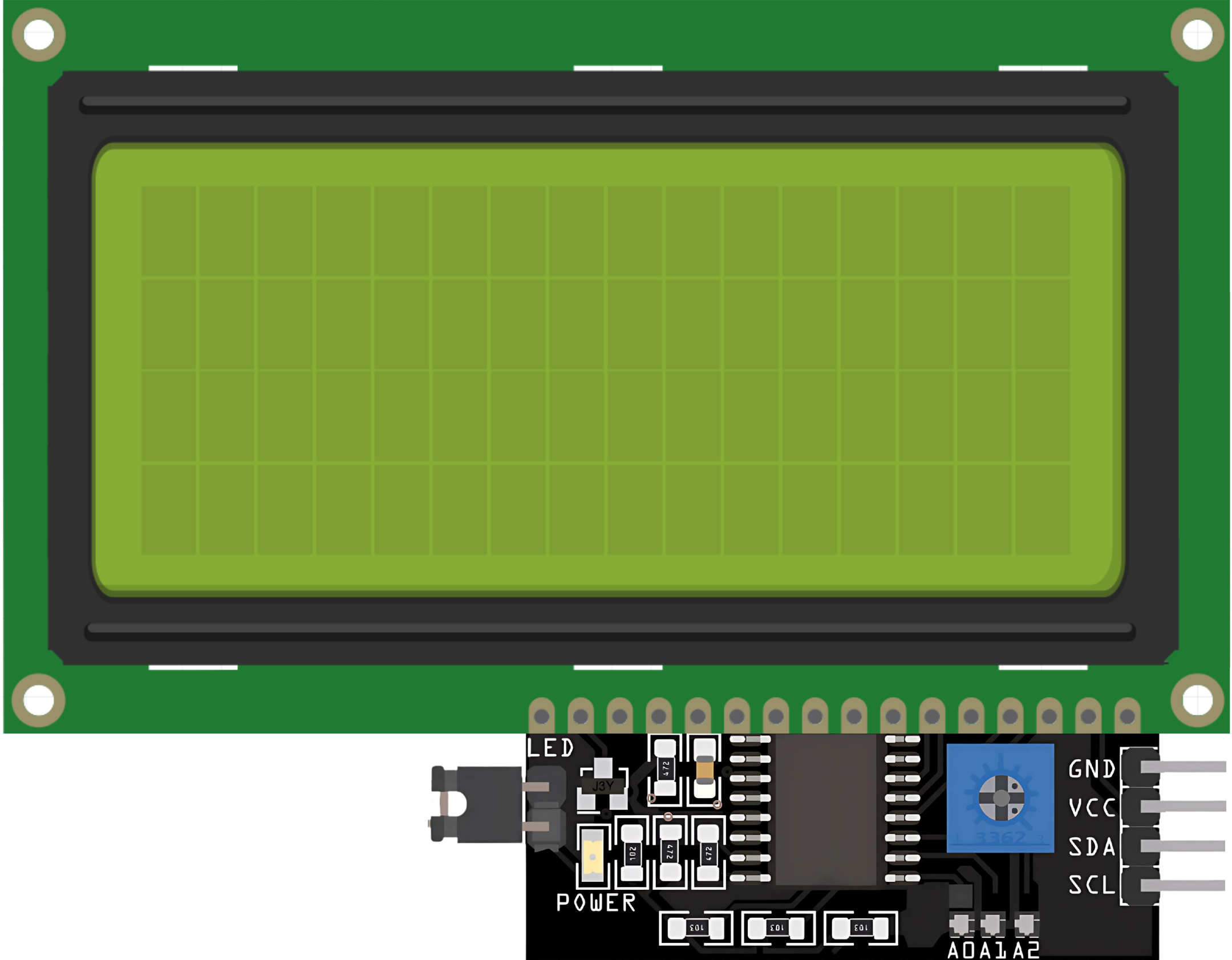
The LCD 20x4 is a Liquid Crystal Display capable of displaying 20 characters per line across 4 lines. It is widely used in embedded systems and microcontroller projects for presenting textual information such as sensor readings, system status, or user instructions. This display is based on the HD44780 controller, making it compatible with most microcontrollers, including Arduino, Raspberry Pi, and others. Its ease of use and low power consumption make it a popular choice for hobbyists and professionals alike.
Explore Projects Built with LCD 20X4
 Open Project in Cirkit Designer
 Open Project in Cirkit Designer
 Open Project in Cirkit Designer
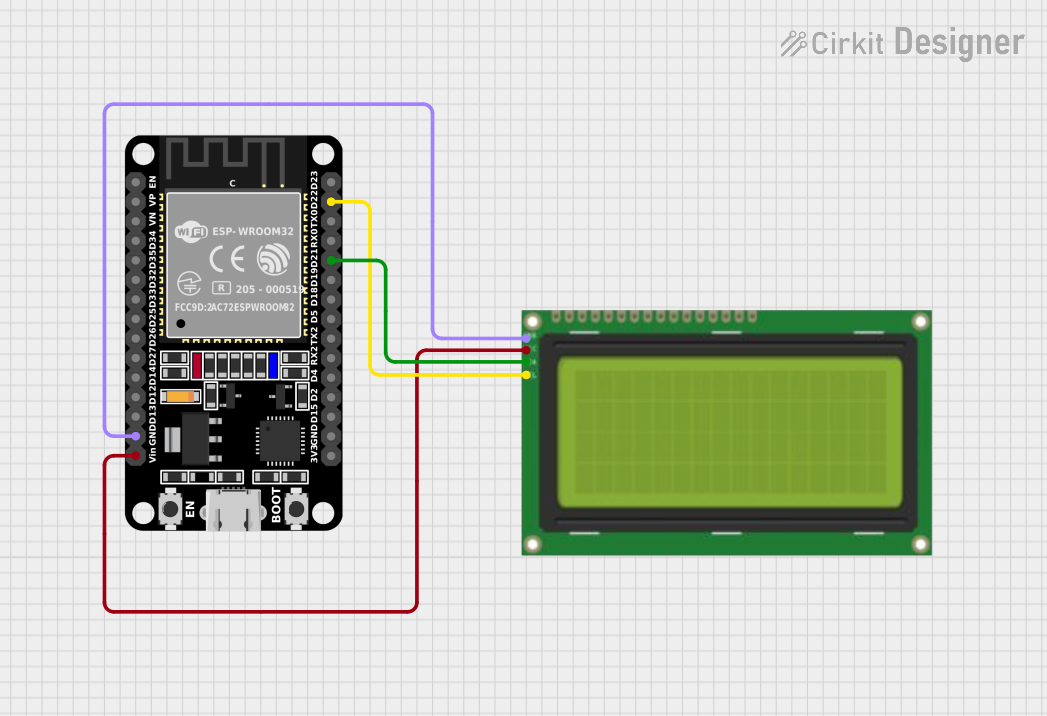 Open Project in Cirkit Designer
Explore Projects Built with LCD 20X4
Open Project in Cirkit DesignerOpen Project in Cirkit DesignerOpen Project in Cirkit DesignerOpen Project in Cirkit DesignerCommon Applications
- Displaying sensor data in IoT projects
- User interfaces for embedded systems
- Menu systems for devices
- Industrial control panels
- Educational and prototyping projects
Technical Specifications
- Display Type: 20x4 character LCD
- Controller: HD44780 or compatible
- Operating Voltage: 4.7V to 5.3V
- Current Consumption: ~2mA (without backlight), ~25mA (with backlight)
- Character Size: 5x8 dot matrix
- Interface: Parallel (4-bit or 8-bit mode)
- Backlight: LED (usually white or green)
- Operating Temperature: -20°C to 70°C
- Dimensions: 98mm x 60mm x 14mm (approx.)
Pin Configuration and Descriptions
The LCD 20x4 typically has 16 pins. Below is the pinout and description:
| Pin No. | Name | Description |
|---|---|---|
| 1 | VSS | Ground (0V) connection |
| 2 | VDD | Power supply (4.7V to 5.3V) |
| 3 | VO | Contrast adjustment (connect to a potentiometer for contrast control) |
| 4 | RS | Register Select (0: Command mode, 1: Data mode) |
| 5 | RW | Read/Write (0: Write to LCD, 1: Read from LCD) |
| 6 | E | Enable pin (used to latch data to the LCD) |
| 7 | D0 | Data pin 0 (used in 8-bit mode, leave unconnected in 4-bit mode) |
| 8 | D1 | Data pin 1 (used in 8-bit mode, leave unconnected in 4-bit mode) |
| 9 | D2 | Data pin 2 (used in 8-bit mode, leave unconnected in 4-bit mode) |
| 10 | D3 | Data pin 3 (used in 8-bit mode, leave unconnected in 4-bit mode) |
| 11 | D4 | Data pin 4 (used in both 4-bit and 8-bit modes) |
| 12 | D5 | Data pin 5 (used in both 4-bit and 8-bit modes) |
| 13 | D6 | Data pin 6 (used in both 4-bit and 8-bit modes) |
| 14 | D7 | Data pin 7 (used in both 4-bit and 8-bit modes) |
| 15 | A (LED+) | Backlight anode (connect to 5V through a resistor if backlight is needed) |
| 16 | K (LED-) | Backlight cathode (connect to ground) |
Usage Instructions
Connecting the LCD 20x4 to an Arduino UNO
The LCD 20x4 can be connected to an Arduino UNO using the 4-bit mode to save pins. Below is a typical wiring configuration:
| LCD Pin | Arduino Pin | Description |
|---|---|---|
| VSS | GND | Ground |
| VDD | 5V | Power supply |
| VO | Potentiometer | Contrast adjustment |
| RS | Pin 12 | Register Select |
| RW | GND | Set to Write mode |
| E | Pin 11 | Enable |
| D4 | Pin 5 | Data pin 4 |
| D5 | Pin 4 | Data pin 5 |
| D6 | Pin 3 | Data pin 6 |
| D7 | Pin 2 | Data pin 7 |
| A | 5V (via resistor) | Backlight anode |
| K | GND | Backlight cathode |
Arduino Code Example
Below is an example code to display text on the LCD 20x4 using the Arduino LiquidCrystal library:
#include <LiquidCrystal.h>

// Initialize the library with the pins connected to the LCD
// (RS, E, D4, D5, D6, D7)
LiquidCrystal lcd(12, 11, 5, 4, 3, 2);

void setup() {
  // Set up the LCD's number of columns and rows
  lcd.begin(20, 4);

  // Print a message to the LCD
  lcd.setCursor(0, 0); // Set cursor to column 0, row 0
  lcd.print("Hello, World!");

  lcd.setCursor(0, 1); // Set cursor to column 0, row 1
  lcd.print("LCD 20x4 Demo");

  lcd.setCursor(0, 2); // Set cursor to column 0, row 2
  lcd.print("Line 3 Example");

  lcd.setCursor(0, 3); // Set cursor to column 0, row 3
  lcd.print("Line 4 Example");
}

void loop() {
  // Nothing to do here
}
Important Considerations
- Contrast Adjustment: Use a 10kΩ potentiometer connected to the VO pin to adjust the display contrast.
- Backlight Resistor: If the backlight is too bright, use a resistor (e.g., 220Ω) in series with the A pin.
- Power Supply: Ensure a stable 5V power supply to avoid flickering or malfunction.
- Pin Connections: Double-check all connections to avoid damage to the LCD or microcontroller.
Troubleshooting and FAQs
Common Issues
No Display on the Screen
- Check the power supply connections (VDD and VSS).
- Adjust the contrast using the potentiometer connected to VO.
- Ensure the backlight pins (A and K) are correctly connected.
Garbage Characters or No Text
- Verify the wiring of the data pins (D4-D7) and control pins (RS, RW, E).
- Ensure the correct pin numbers are defined in the Arduino code.
- Confirm that the
lcd.begin(20, 4)function matches the LCD's dimensions.
Flickering or Unstable Display
- Check for loose connections or poor soldering.
- Ensure the power supply is stable and sufficient.
Backlight Not Working
- Verify the resistor and connections to the A and K pins.
- Ensure the backlight is not disabled in the code (if applicable).
FAQs
Can I use the LCD 20x4 with a 3.3V microcontroller?
- Yes, but you will need a level shifter or resistor divider for the data and control pins. The backlight may also require a separate 5V supply.
How do I clear the display?
- Use the
lcd.clear()function in your code to clear the screen.
- Use the
Can I use the LCD in 8-bit mode?
- Yes, connect all 8 data pins (D0-D7) to the microcontroller and configure the library accordingly.
What is the maximum cable length for connecting the LCD?
- Keep the cable length as short as possible (preferably under 30cm) to avoid signal degradation.
By following this documentation, you can effectively integrate the LCD 20x4 into your projects and troubleshoot common issues with ease.