
How to Use huskylense: Examples, Pinouts, and Specs
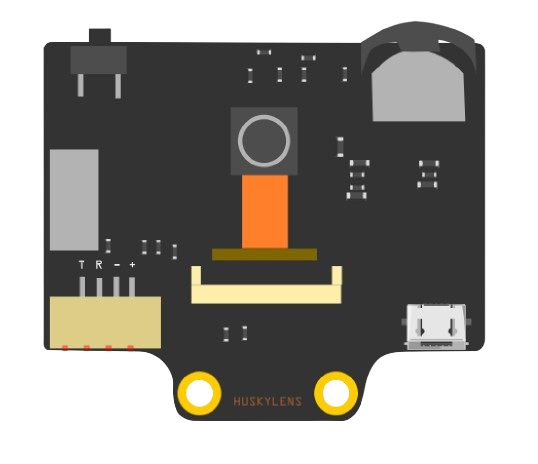
 Design with huskylense in Cirkit Designer
Introduction
HuskyLens is an AI-powered camera module designed for object recognition, face detection, color recognition, and more. It features a user-friendly interface with a built-in display, making it easy to configure and visualize results in real-time. HuskyLens is powered by advanced machine learning algorithms, enabling it to perform tasks such as object tracking, line following, and tag recognition without requiring external processing.
This versatile module is widely used in robotics, IoT projects, and educational applications. Its compatibility with microcontrollers like Arduino, Raspberry Pi, and other platforms makes it an excellent choice for developers and hobbyists alike.
Explore Projects Built with huskylense
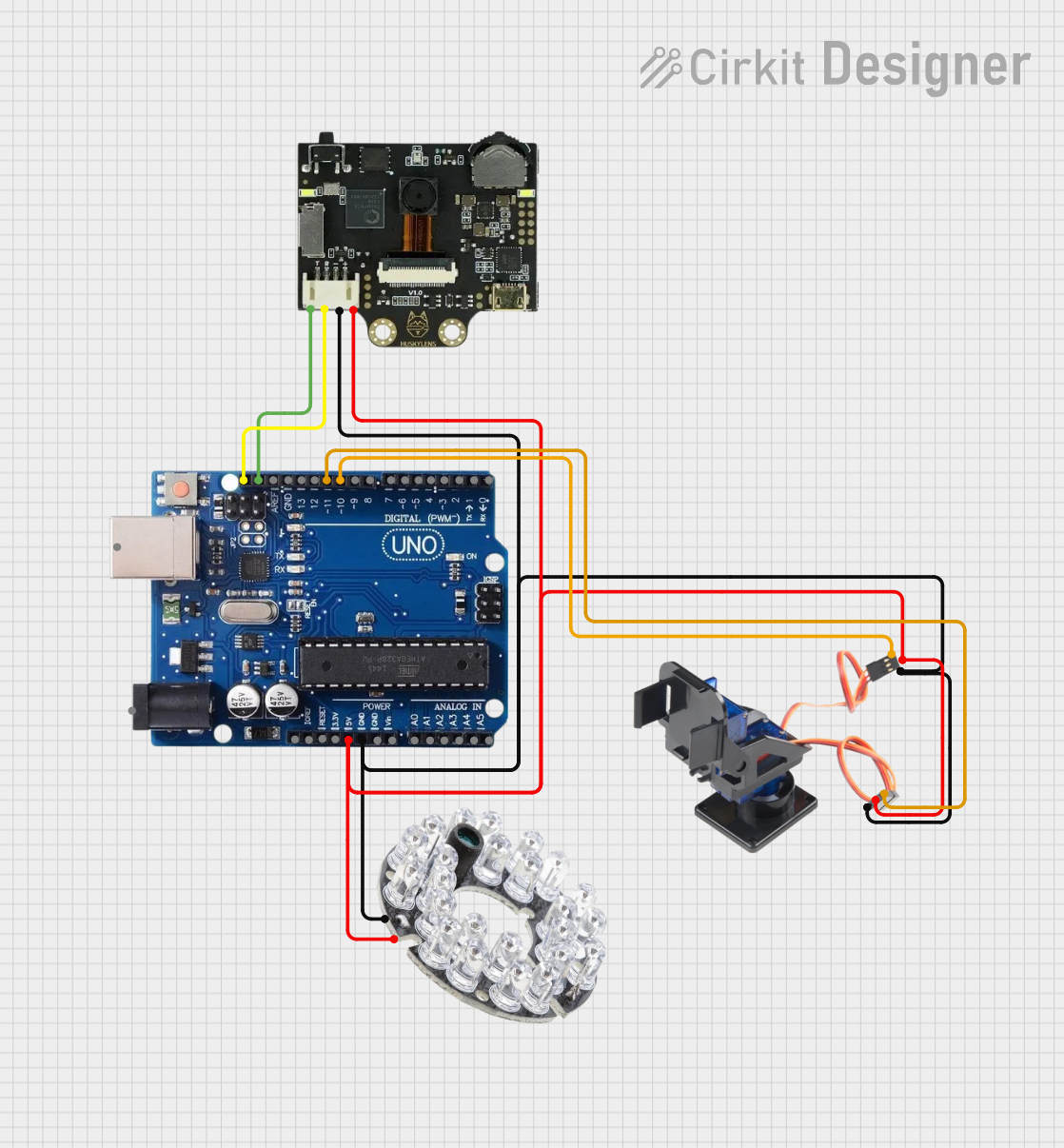 Open Project in Cirkit Designer
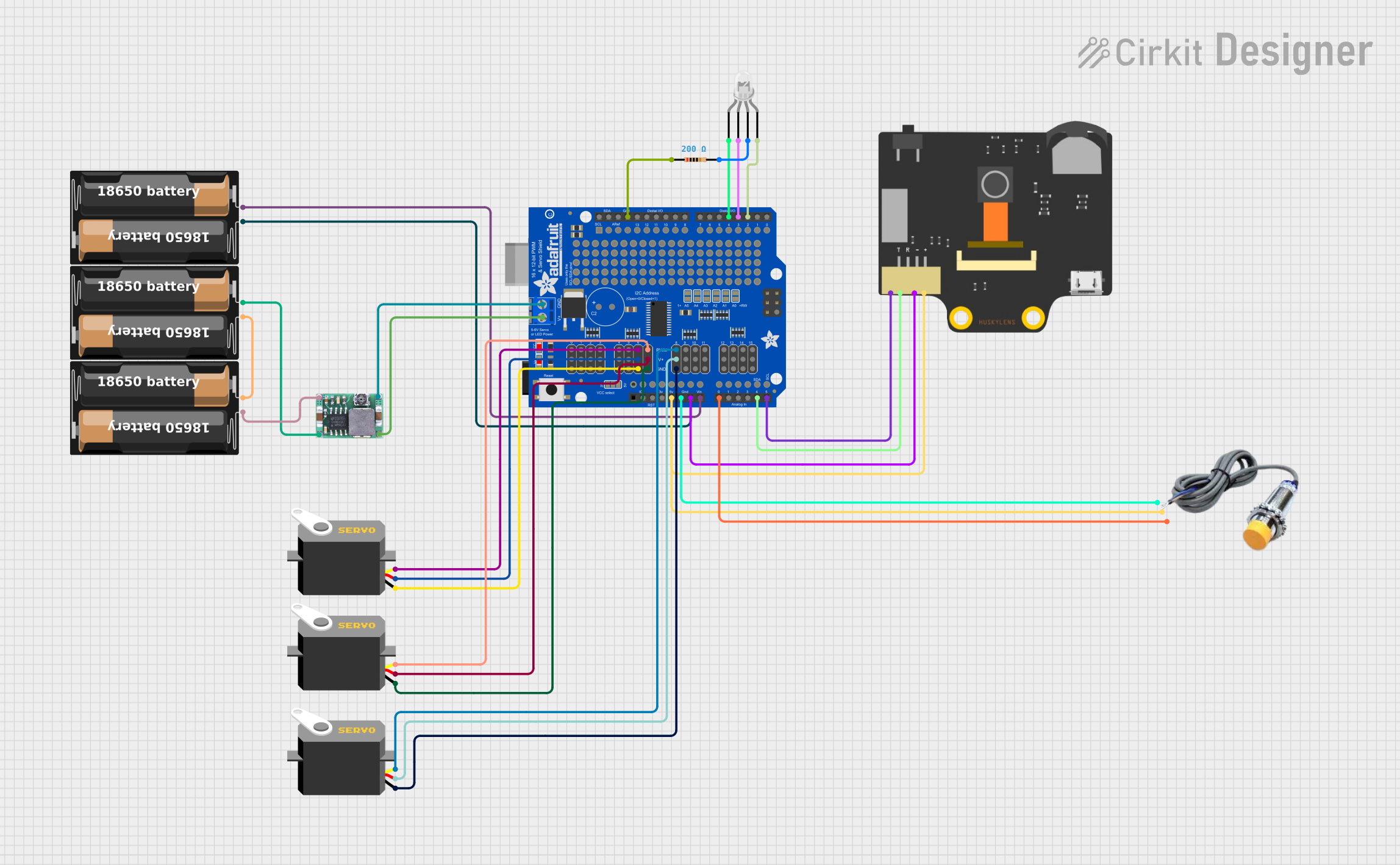 Open Project in Cirkit Designer
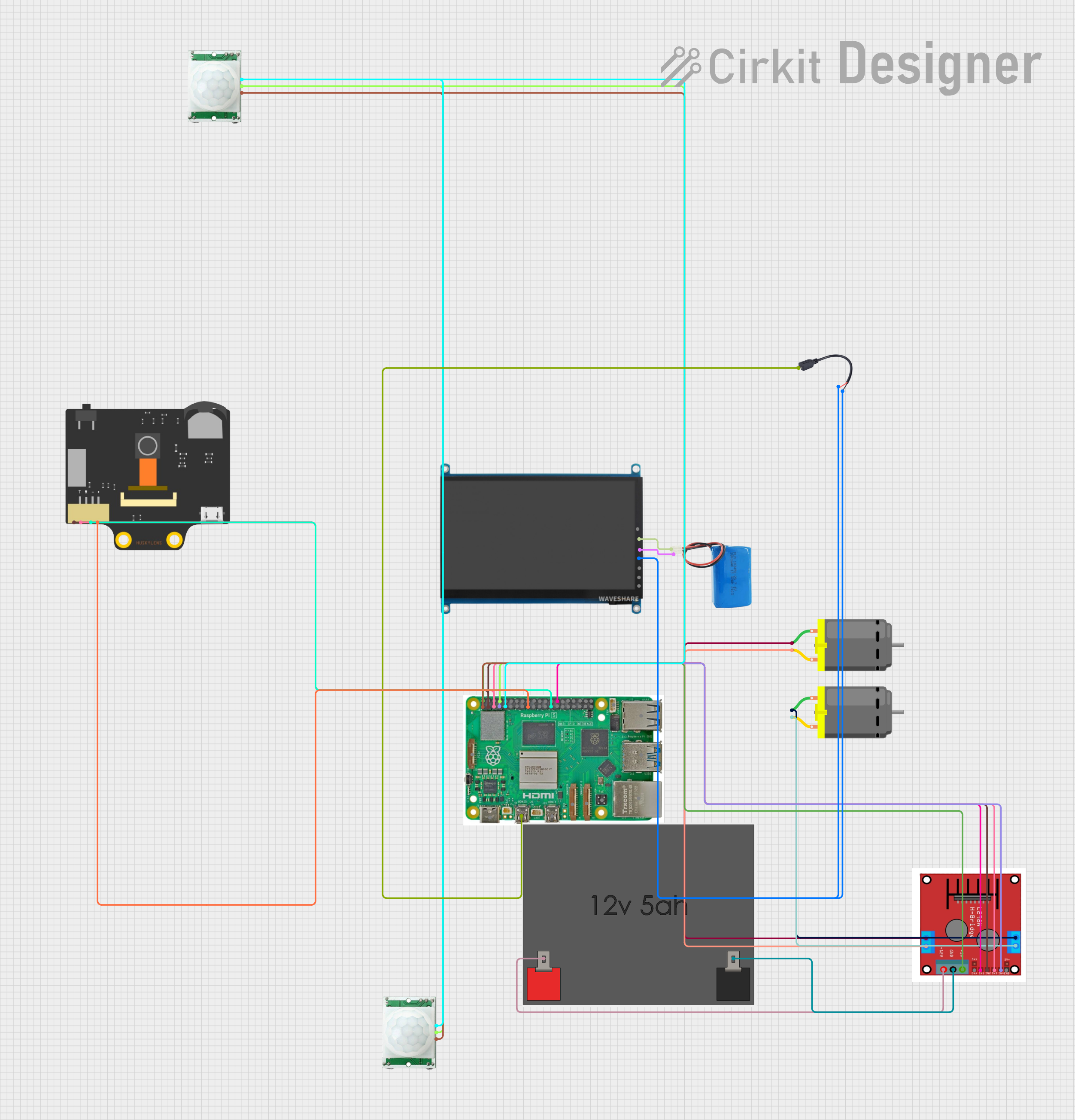 Open Project in Cirkit Designer
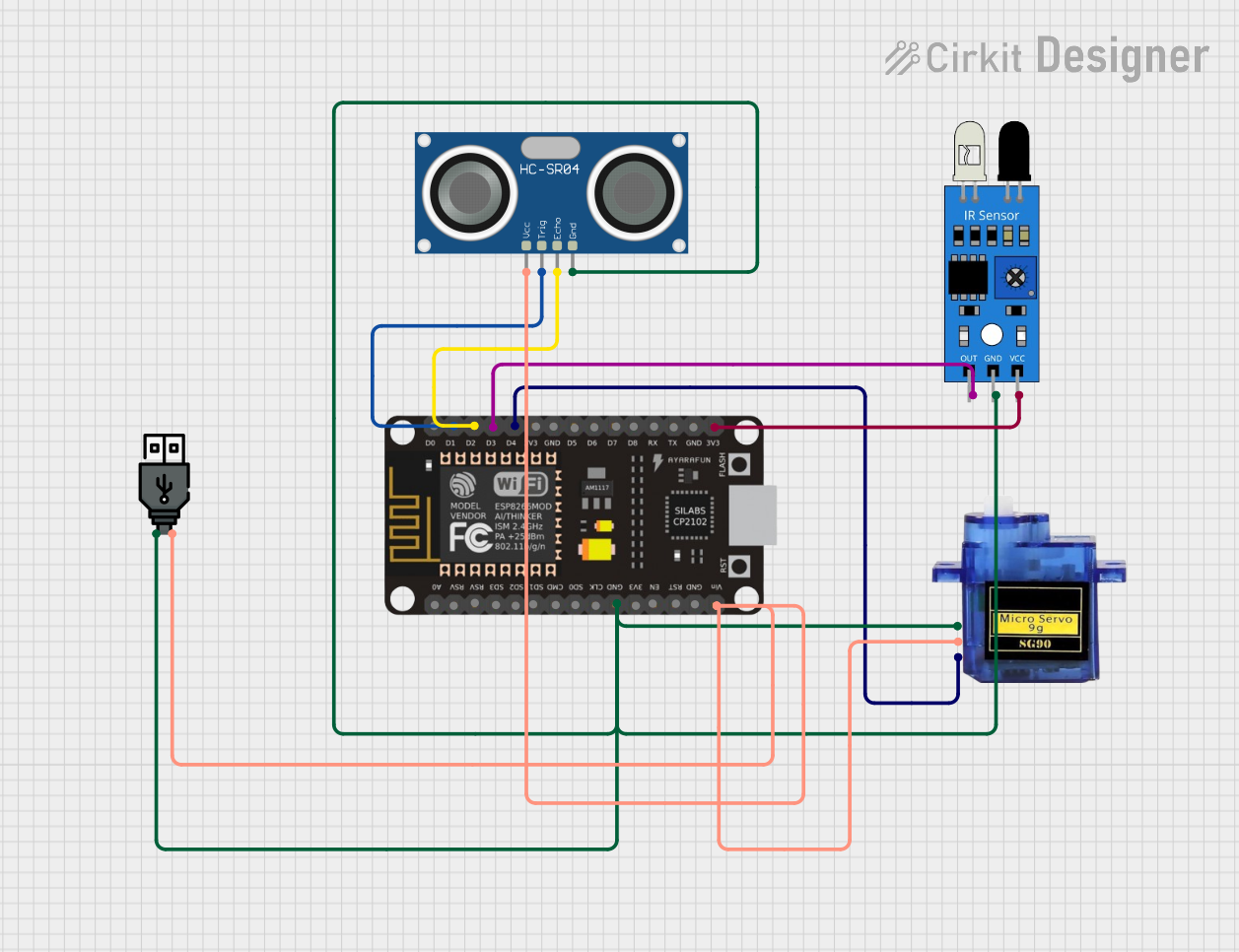 Open Project in Cirkit Designer
Explore Projects Built with huskylense
Open Project in Cirkit DesignerOpen Project in Cirkit DesignerOpen Project in Cirkit DesignerOpen Project in Cirkit DesignerTechnical Specifications
- Processor: Kendryte K210 AI chip
- Display: 2.0-inch IPS screen
- Camera Resolution: 2MP
- Communication Interfaces: UART, I2C
- Input Voltage: 3.3V to 5V
- Power Consumption: 0.5W (typical)
- Dimensions: 52mm x 44mm x 20mm
- Weight: 30g
- Supported Algorithms:
- Face recognition
- Object recognition
- Object tracking
- Line tracking
- Color recognition
- Tag (QR code) recognition
Pin Configuration and Descriptions
The HuskyLens module has a 4-pin interface for communication and power. The pinout is as follows:
| Pin | Name | Description |
|---|---|---|
| 1 | VCC | Power input (3.3V to 5V) |
| 2 | GND | Ground connection |
| 3 | TX (UART) | UART Transmit pin (used for serial communication) |
| 4 | RX (UART) | UART Receive pin (used for serial communication) |
For I2C communication, the module uses the following pins:
| Pin | Name | Description |
|---|---|---|
| 3 | SCL | I2C Clock Line |
| 4 | SDA | I2C Data Line |
Usage Instructions
Connecting HuskyLens to an Arduino UNO
To use HuskyLens with an Arduino UNO, follow these steps:
- Connect the VCC pin of HuskyLens to the 5V pin on the Arduino.
- Connect the GND pin of HuskyLens to the GND pin on the Arduino.
- For UART communication:
- Connect the TX pin of HuskyLens to the RX pin (pin 0) on the Arduino.
- Connect the RX pin of HuskyLens to the TX pin (pin 1) on the Arduino.
- For I2C communication:
- Connect the SCL pin of HuskyLens to the A5 pin on the Arduino.
- Connect the SDA pin of HuskyLens to the A4 pin on the Arduino.
Example Code for Arduino UNO (I2C Communication)
The following code demonstrates how to initialize HuskyLens and retrieve data using I2C communication:
#include <Wire.h>

// HuskyLens I2C address
#define HUSKYLENS_I2C_ADDRESS 0x32

void setup() {
  Wire.begin(); // Initialize I2C communication
  Serial.begin(9600); // Initialize serial communication for debugging

  // Send initialization command to HuskyLens
  Wire.beginTransmission(HUSKYLENS_I2C_ADDRESS);
  Wire.write(0x55); // Example command to initialize HuskyLens
  Wire.endTransmission();

  Serial.println("HuskyLens initialized.");
}

void loop() {
  // Request data from HuskyLens
  Wire.requestFrom(HUSKYLENS_I2C_ADDRESS, 8); // Request 8 bytes of data

  if (Wire.available()) {
    Serial.print("Data received: ");
    while (Wire.available()) {
      byte data = Wire.read(); // Read each byte
      Serial.print(data, HEX); // Print data in hexadecimal format
      Serial.print(" ");
    }
    Serial.println();
  }

  delay(500); // Wait for 500ms before the next request
}
Important Considerations
- Ensure the HuskyLens module is powered within the specified voltage range (3.3V to 5V).
- Use level shifters if connecting to a 3.3V microcontroller to avoid damaging the module.
- For optimal performance, ensure the camera lens is clean and unobstructed.
- Use the HuskyLens interface to train the module for specific tasks (e.g., object recognition) before integrating it into your project.
Troubleshooting and FAQs
Common Issues
HuskyLens is not responding to commands.
- Ensure the module is powered correctly and the connections are secure.
- Verify that the communication protocol (UART or I2C) is configured correctly in your code.
Data received from HuskyLens is incorrect or garbled.
- Check the baud rate for UART communication (default is 9600).
- Ensure the I2C address matches the one configured in your code (default is
0x32).
HuskyLens is not recognizing objects or faces.
- Ensure the module has been trained for the specific task using its built-in interface.
- Verify that the lighting conditions are adequate for the camera to capture clear images.
Tips for Troubleshooting
- Use the HuskyLens display to verify that the module is functioning correctly and detecting objects.
- Test the module with the official HuskyLens software or app to rule out hardware issues.
- If using UART communication, avoid connecting the module to the Arduino's hardware serial pins (0 and 1) while uploading code. Use a software serial library instead.
By following this documentation, you can effectively integrate HuskyLens into your projects and leverage its powerful AI capabilities for a wide range of applications.