
How to Use Raspberry Pi Touch Display 10.1": Examples, Pinouts, and Specs
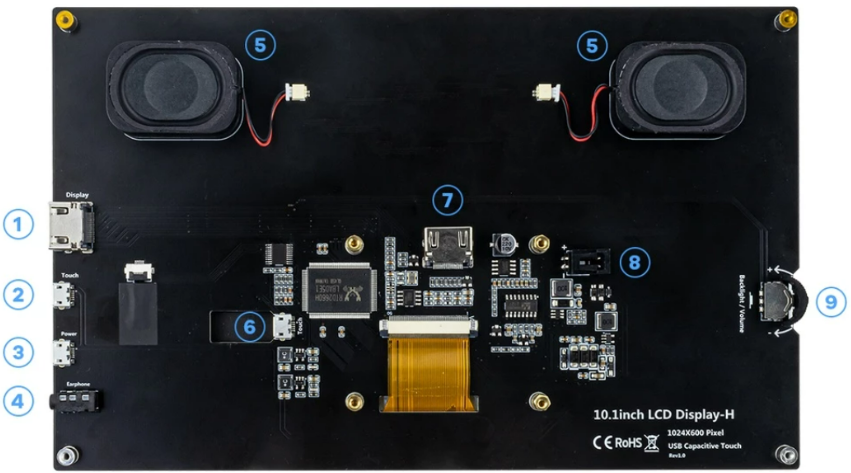
 Design with Raspberry Pi Touch Display 10.1" in Cirkit Designer
Introduction
The Raspberry Pi Touch Display 10.1" is a high-quality touchscreen designed specifically for use with Raspberry Pi boards. It features a 10.1-inch capacitive touch interface with a resolution of 800x480 pixels, making it ideal for interactive applications such as kiosks, home automation systems, and portable computing projects. Its plug-and-play compatibility with Raspberry Pi boards ensures seamless integration and ease of use.
Explore Projects Built with Raspberry Pi Touch Display 10.1"
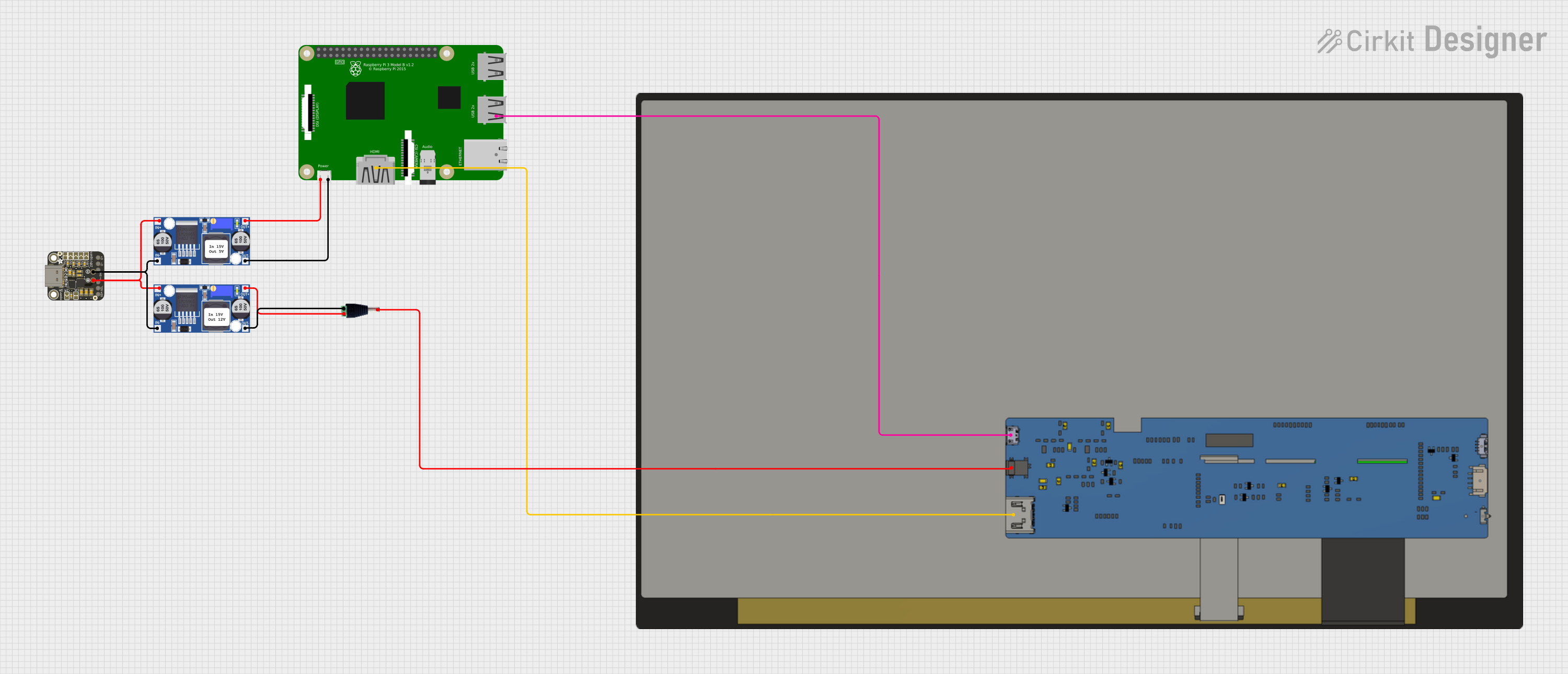 Open Project in Cirkit Designer
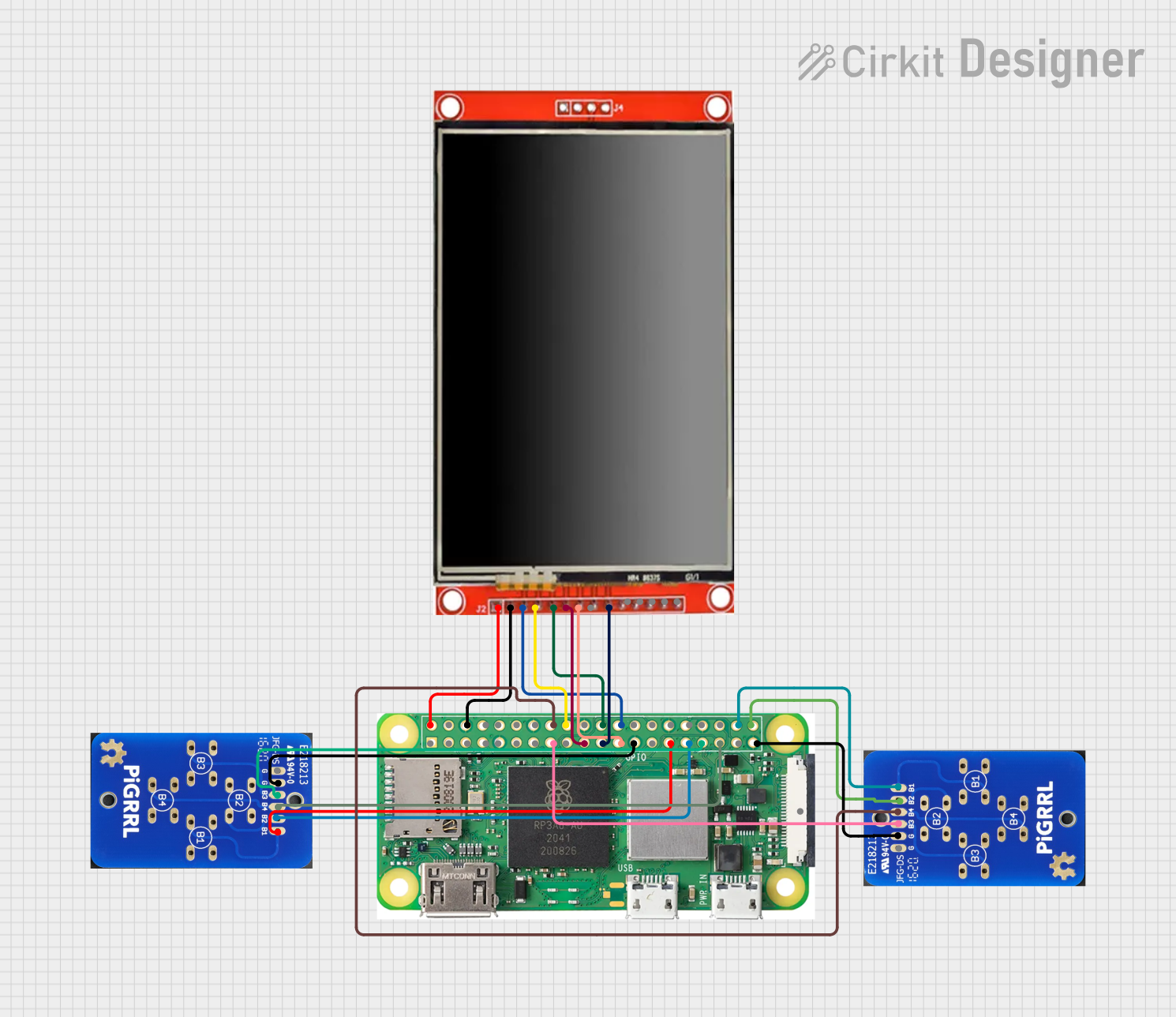 Open Project in Cirkit Designer
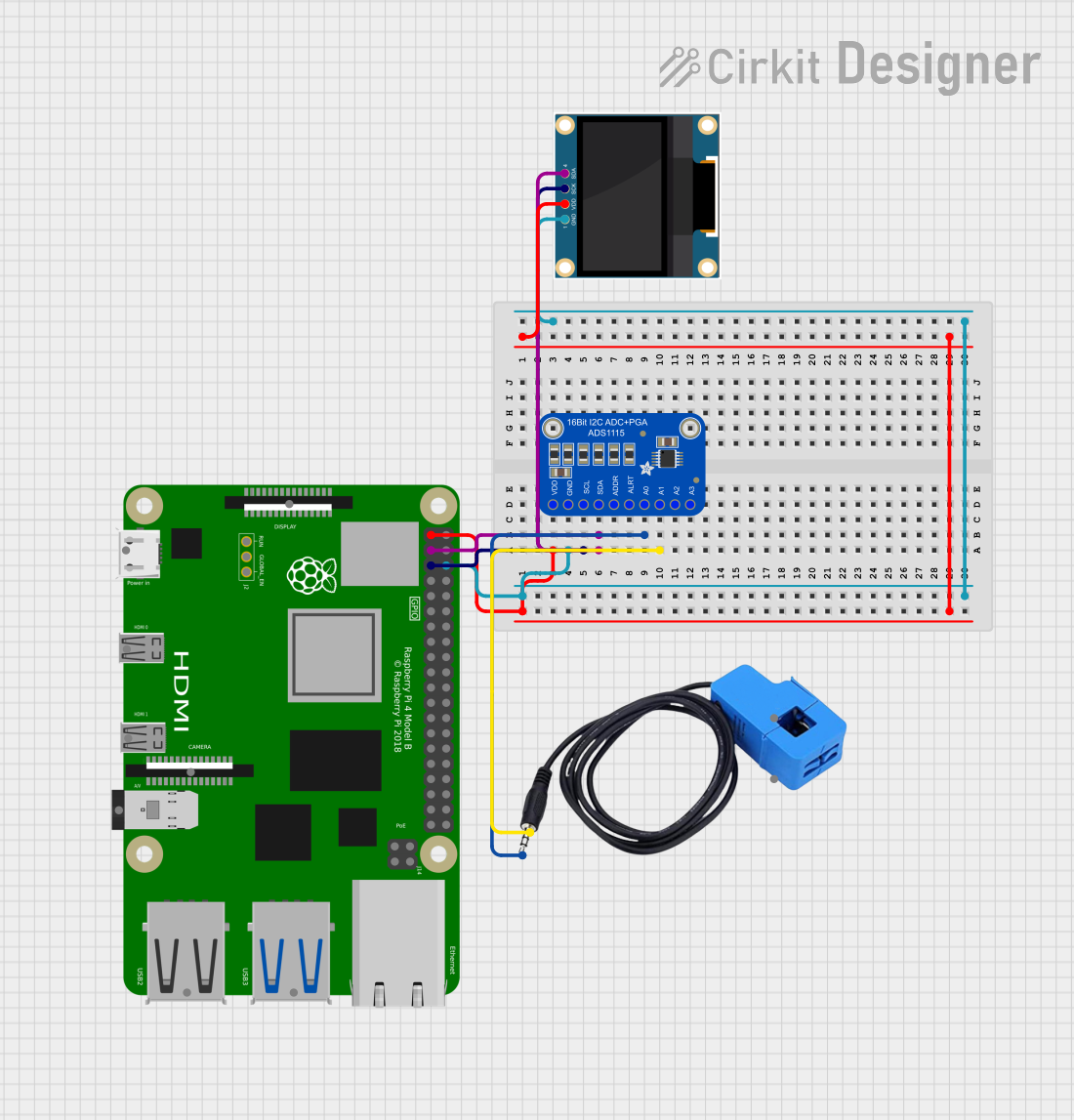 Open Project in Cirkit Designer
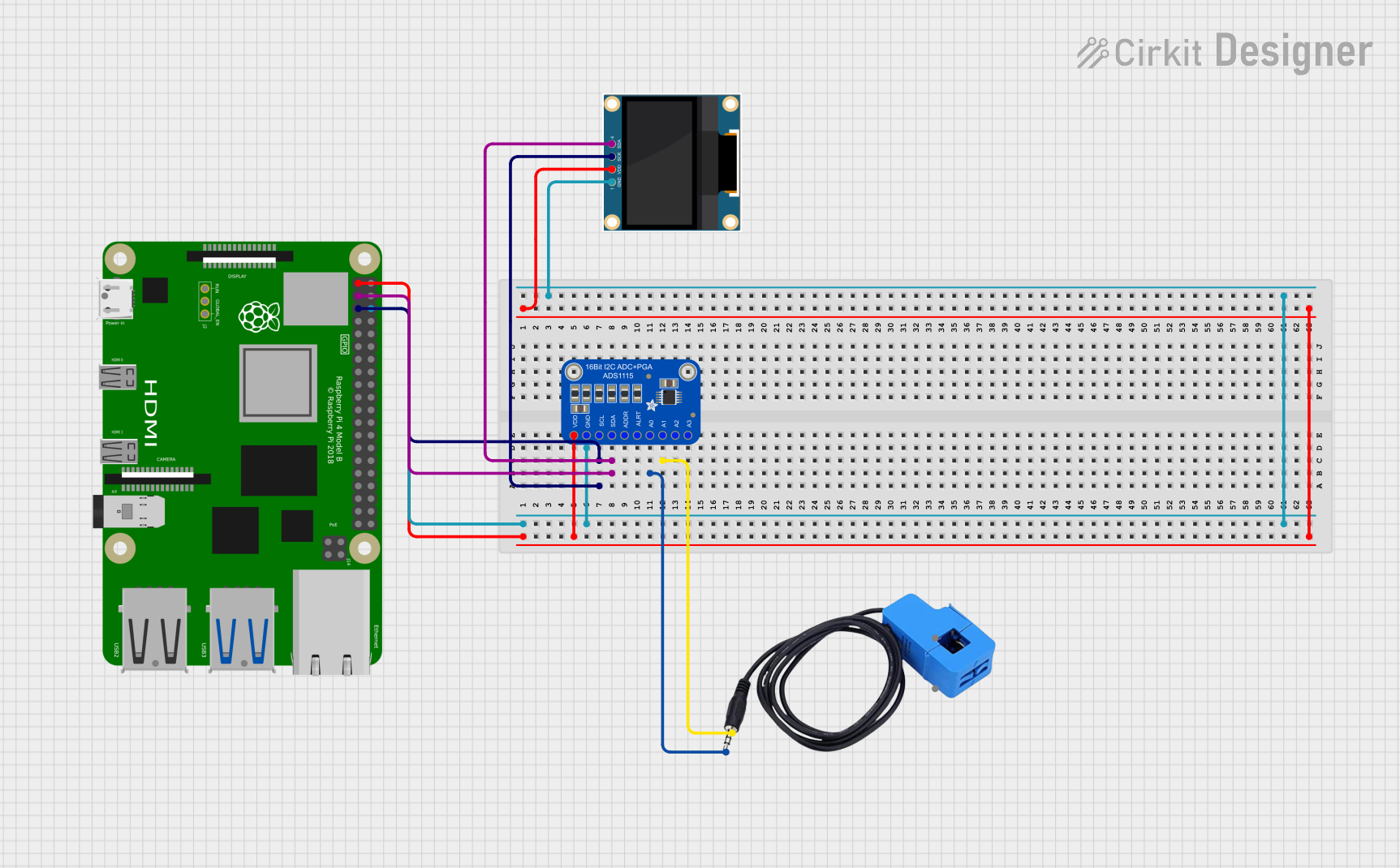 Open Project in Cirkit Designer
Explore Projects Built with Raspberry Pi Touch Display 10.1"
Open Project in Cirkit DesignerOpen Project in Cirkit DesignerOpen Project in Cirkit DesignerOpen Project in Cirkit DesignerCommon Applications and Use Cases
- Interactive kiosks and point-of-sale systems
- Home automation control panels
- Portable media players and gaming consoles
- Educational and prototyping projects
- Industrial monitoring and control systems
Technical Specifications
Key Technical Details
| Specification | Value |
|---|---|
| Display Size | 10.1 inches |
| Resolution | 800x480 pixels |
| Touch Technology | Capacitive (10-point touch) |
| Interface | DSI (Display Serial Interface) |
| Power Supply | 5V (via Raspberry Pi or external) |
| Dimensions | 255mm x 174mm x 20mm |
| Weight | ~450g |
| Viewing Angle | 70°/70°/50°/70° (L/R/U/D) |
| Brightness | 250 cd/m² |
| Contrast Ratio | 500:1 |
Pin Configuration and Descriptions
The Raspberry Pi Touch Display 10.1" connects to the Raspberry Pi board via the DSI port. Below is the pin configuration for the DSI connector:
| Pin Number | Signal Name | Description |
|---|---|---|
| 1 | GND | Ground |
| 2 | DSI_CLK_P | Differential Clock Positive |
| 3 | DSI_CLK_N | Differential Clock Negative |
| 4 | GND | Ground |
| 5 | DSI_D0_P | Differential Data Lane 0 Positive |
| 6 | DSI_D0_N | Differential Data Lane 0 Negative |
| 7 | GND | Ground |
| 8 | DSI_D1_P | Differential Data Lane 1 Positive |
| 9 | DSI_D1_N | Differential Data Lane 1 Negative |
| 10 | GND | Ground |
Usage Instructions
How to Use the Component in a Circuit
Connect the Display to the Raspberry Pi:
- Attach the ribbon cable from the display to the DSI port on the Raspberry Pi board.
- Ensure the cable is securely connected with the correct orientation (contacts facing the DSI port pins).
Power the Display:
- The display can be powered directly from the Raspberry Pi via the GPIO pins or an external 5V power source.
- If using GPIO, connect the 5V and GND pins from the Raspberry Pi to the display's power input.
Enable the Touchscreen:
- The Raspberry Pi OS (or compatible operating system) should automatically detect the display and enable touch functionality.
- If the display is not detected, ensure the DSI interface is enabled in the Raspberry Pi configuration settings.
Adjust Display Settings:
- Use the Raspberry Pi configuration tool (
raspi-config) to adjust resolution, orientation, and other display settings as needed.
- Use the Raspberry Pi configuration tool (
Important Considerations and Best Practices
- Compatibility: Ensure your Raspberry Pi board supports the DSI interface (e.g., Raspberry Pi 4, 3, or 2).
- Power Supply: Use a reliable 5V power source to avoid flickering or instability.
- Mounting: Secure the display using a compatible case or mounting hardware to prevent damage.
- Software Updates: Keep your Raspberry Pi OS updated to ensure compatibility with the display.
Example Code for Raspberry Pi
Below is an example Python script to create a simple touch-enabled GUI using the tkinter library:
Import the tkinter library for GUI development
import tkinter as tk
Create the main application window
root = tk.Tk() root.title("Touch Display Example") root.geometry("800x480") # Set the resolution to match the display
Add a label to the window
label = tk.Label(root, text="Hello, Raspberry Pi Touch Display!", font=("Arial", 16)) label.pack(pady=20)
Add a button to demonstrate touch interaction
def on_button_click(): label.config(text="Button Pressed!")
button = tk.Button(root, text="Press Me", font=("Arial", 14), command=on_button_click) button.pack(pady=20)
Run the application
root.mainloop()
> **Note**: Ensure the `tkinter` library is installed on your Raspberry Pi. You can install it using the command:
> `sudo apt-get install python3-tk`
Troubleshooting and FAQs
Common Issues Users Might Face
Display Not Turning On:
- Cause: Loose or incorrect connection of the ribbon cable.
- Solution: Recheck the ribbon cable connection to the DSI port and ensure it is secure.
Touchscreen Not Responding:
- Cause: Outdated Raspberry Pi OS or disabled DSI interface.
- Solution: Update the Raspberry Pi OS and enable the DSI interface in the configuration settings.
Flickering or Unstable Display:
- Cause: Insufficient power supply.
- Solution: Use a reliable 5V power source with adequate current (at least 2.5A).
Incorrect Resolution or Orientation:
- Cause: Default display settings not matching the screen.
- Solution: Adjust the resolution and orientation using the
raspi-configtool.
Solutions and Tips for Troubleshooting
- Check Connections: Ensure all cables are securely connected and oriented correctly.
- Test with Another Raspberry Pi: If the display does not work, test it with another Raspberry Pi board to rule out hardware issues.
- Refer to Logs: Check system logs (
dmesgor/var/log/syslog) for errors related to the DSI interface or touchscreen.
By following this documentation, you can effectively integrate and utilize the Raspberry Pi Touch Display 10.1" in your projects.