
How to Use Relay 1 Channel: Examples, Pinouts, and Specs
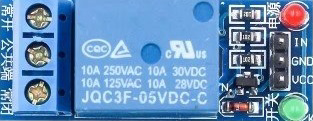
 Design with Relay 1 Channel in Cirkit Designer
Introduction
The Relay 1 Channel (Manufacturer: Arduino, Part ID: MEGA) is an electromechanical switch that allows a low-power signal to control a high-power circuit. This component is widely used in applications where electrical isolation and high-power switching are required. It is ideal for controlling devices such as lights, motors, and home appliances using microcontrollers like the Arduino UNO.
Explore Projects Built with Relay 1 Channel
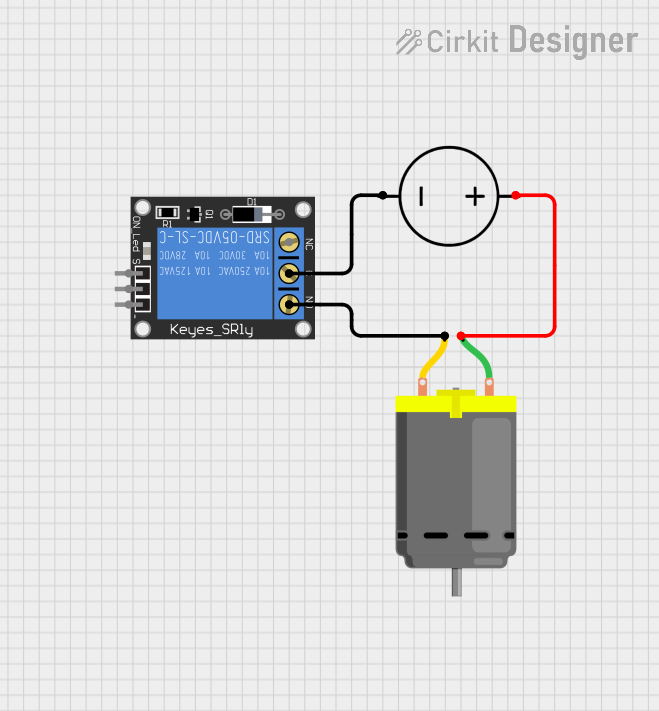 Open Project in Cirkit Designer
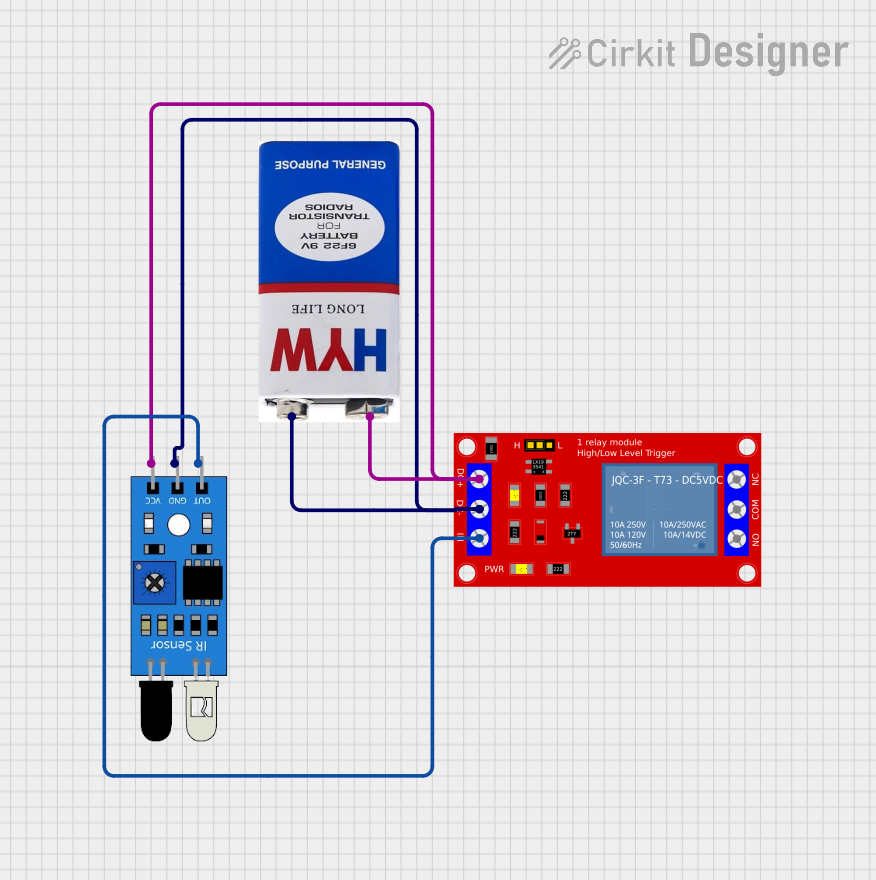 Open Project in Cirkit Designer
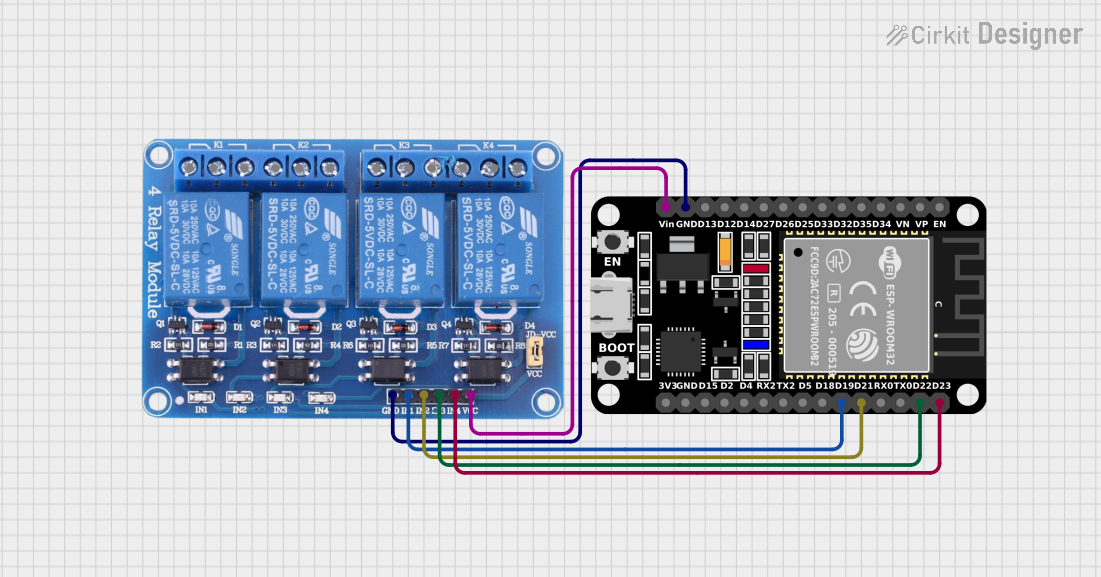 Open Project in Cirkit Designer
 Open Project in Cirkit Designer
Explore Projects Built with Relay 1 Channel
Open Project in Cirkit DesignerOpen Project in Cirkit DesignerOpen Project in Cirkit DesignerOpen Project in Cirkit DesignerCommon Applications and Use Cases
- Home automation systems (e.g., controlling lights or fans)
- Industrial control systems
- Motor control
- IoT projects requiring high-power device switching
- Safety-critical systems requiring electrical isolation
Technical Specifications
The Relay 1 Channel is designed to interface seamlessly with microcontrollers while providing robust switching capabilities for high-power devices. Below are the key technical details:
General Specifications
| Parameter | Value |
|---|---|
| Manufacturer | Arduino |
| Part ID | MEGA |
| Operating Voltage | 5V DC |
| Trigger Voltage | 3.3V to 5V DC |
| Maximum Switching Voltage | 250V AC / 30V DC |
| Maximum Switching Current | 10A |
| Relay Type | SPDT (Single Pole Double Throw) |
| Isolation | Optocoupler-based isolation |
| Dimensions | 50mm x 26mm x 18mm |
Pin Configuration and Descriptions
The Relay 1 Channel module has three input pins and three output terminals. Below is the pin configuration:
Input Pins
| Pin Name | Description |
|---|---|
| VCC | Connect to 5V DC power supply |
| GND | Connect to ground |
| IN | Control signal input (3.3V or 5V logic level) |
Output Terminals
| Terminal Name | Description |
|---|---|
| COM | Common terminal for the relay |
| NO | Normally Open terminal (connected when relay is activated) |
| NC | Normally Closed terminal (connected when relay is deactivated) |
Usage Instructions
The Relay 1 Channel is straightforward to use in a circuit. Below are the steps and best practices for integrating it into your project:
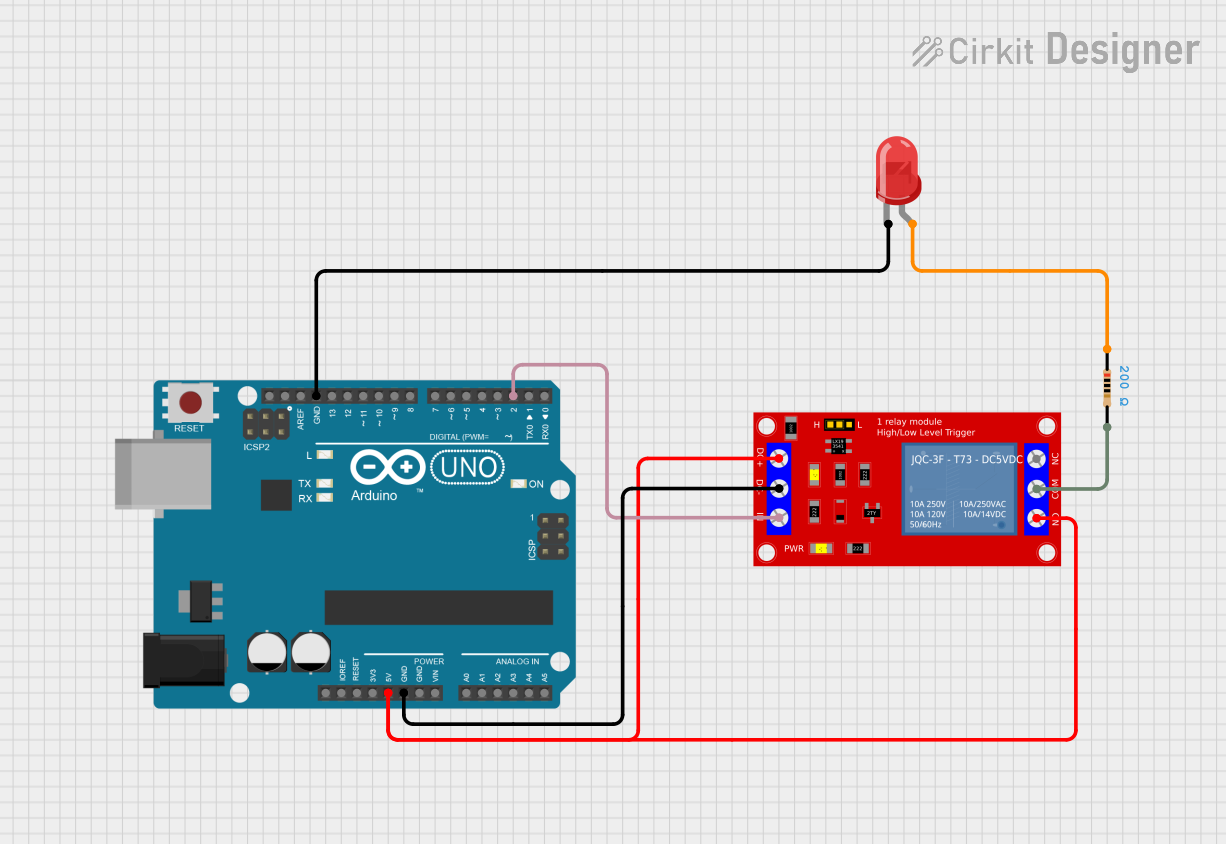
Connecting the Relay to an Arduino UNO
Power the Relay Module:
- Connect the
VCCpin of the relay to the 5V pin on the Arduino UNO. - Connect the
GNDpin of the relay to the GND pin on the Arduino UNO.
- Connect the
Control Signal:
- Connect the
INpin of the relay to a digital output pin on the Arduino UNO (e.g., pin 7).
- Connect the
Connect the Load:
- Connect the device you want to control (e.g., a light bulb) to the relay's output terminals.
- For example, connect one wire of the load to the
COMterminal and the other to theNOterminal if you want the device to turn on when the relay is activated.
Upload the Code:
- Use the Arduino IDE to upload the control code to the Arduino UNO.
Example Code for Arduino UNO
// Example code to control a Relay 1 Channel module with Arduino UNO

const int relayPin = 7; // Define the pin connected to the relay's IN pin

void setup() {
  pinMode(relayPin, OUTPUT); // Set the relay pin as an output
  digitalWrite(relayPin, LOW); // Ensure the relay is off at startup
}

void loop() {
  digitalWrite(relayPin, HIGH); // Turn the relay on
  delay(1000); // Keep the relay on for 1 second
  digitalWrite(relayPin, LOW); // Turn the relay off
  delay(1000); // Keep the relay off for 1 second
}
Important Considerations and Best Practices
- Electrical Isolation: Ensure proper isolation between the low-power control circuit and the high-power load to prevent damage to the microcontroller.
- Power Ratings: Do not exceed the relay's maximum voltage and current ratings (250V AC / 30V DC, 10A).
- Flyback Diode: If controlling an inductive load (e.g., a motor), use a flyback diode across the load to protect the relay from voltage spikes.
- Secure Connections: Ensure all connections are secure to avoid loose wires, which can cause malfunction or hazards.
Troubleshooting and FAQs
Common Issues and Solutions
Relay Not Activating:
- Cause: Insufficient control signal voltage.
Solution: Ensure theINpin receives a 3.3V or 5V signal from the microcontroller. - Cause: Incorrect wiring.
Solution: Double-check the connections to theVCC,GND, andINpins.
- Cause: Insufficient control signal voltage.
Load Not Switching:
- Cause: Incorrect wiring of the load to the relay terminals.
Solution: Verify the load is connected to the correct terminals (COMandNOorNC). - Cause: Load exceeds relay's power ratings.
Solution: Ensure the load's voltage and current are within the relay's specifications.
- Cause: Incorrect wiring of the load to the relay terminals.
Relay Stuck in One State:
- Cause: Relay contacts are damaged due to overcurrent.
Solution: Replace the relay and ensure the load does not exceed the rated current.
- Cause: Relay contacts are damaged due to overcurrent.
FAQs
Q1: Can I use the Relay 1 Channel with a 3.3V microcontroller?
A1: Yes, the relay can be triggered with a 3.3V control signal, but ensure the VCC pin is powered with 5V.
Q2: Is the relay safe for switching AC appliances?
A2: Yes, the relay is designed to handle up to 250V AC at 10A. However, ensure proper insulation and safety precautions when working with high voltages.
Q3: Can I control multiple relays with one Arduino?
A3: Yes, you can control multiple relays by connecting each relay's IN pin to a separate digital output pin on the Arduino.
By following this documentation, you can effectively integrate the Relay 1 Channel into your projects for reliable high-power switching.