
How to Use Led Strip 5V: Examples, Pinouts, and Specs

 Design with Led Strip 5V in Cirkit Designer
Introduction
The LED Strip 5V by Raspberry Pi (Manufacturer Part ID: 5) is a flexible circuit board embedded with surface-mounted light-emitting diodes (LEDs). Operating at a low voltage of 5V, this LED strip is designed for ease of use and versatility. It is commonly used for decorative lighting, backlighting, and accent lighting in a variety of applications, including home decor, DIY projects, and commercial displays. Its flexibility and vibrant lighting capabilities make it a popular choice for both hobbyists and professionals.
Explore Projects Built with Led Strip 5V
 Open Project in Cirkit Designer
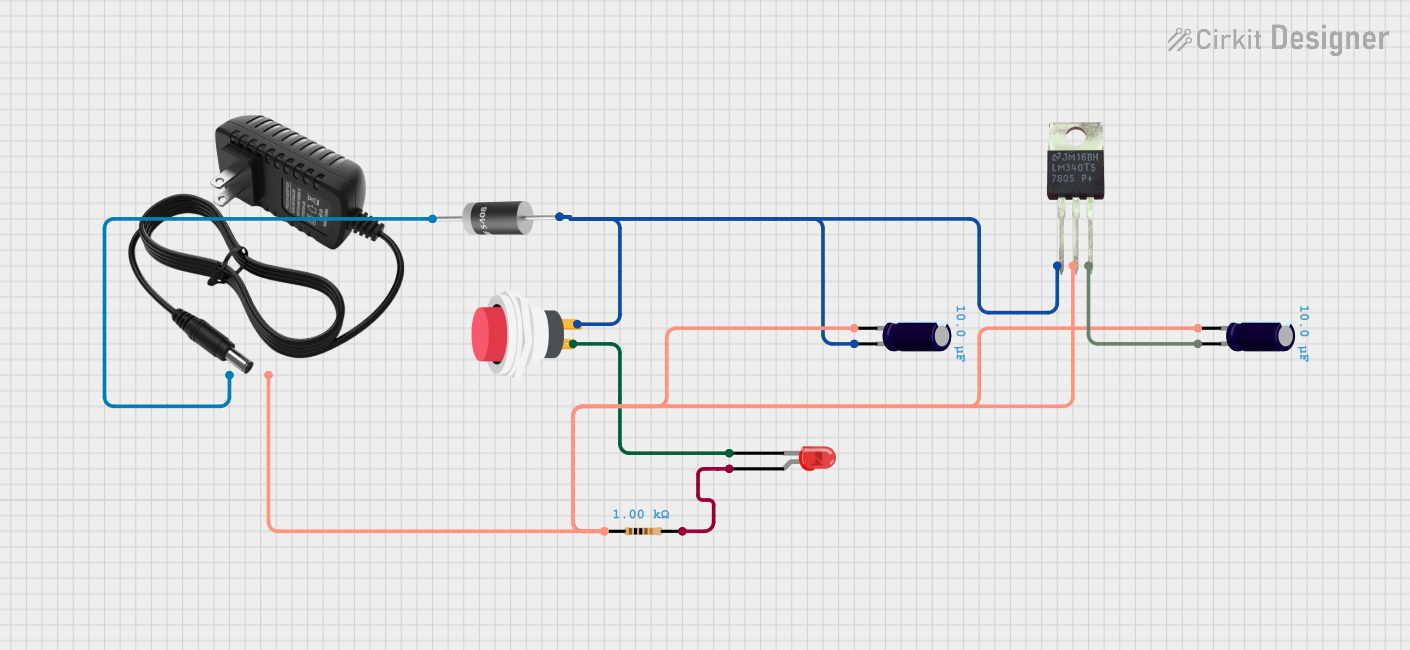 Open Project in Cirkit Designer
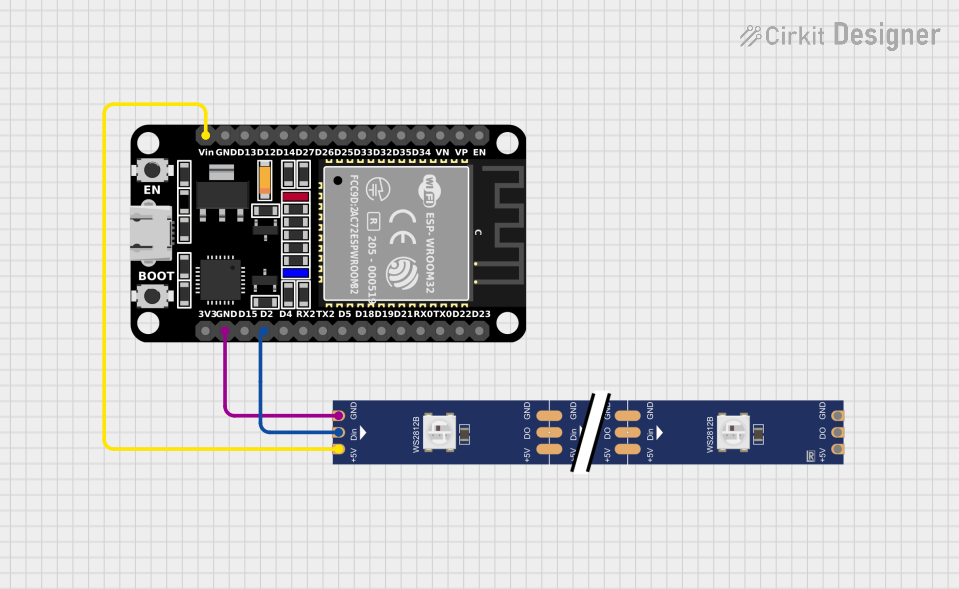 Open Project in Cirkit Designer
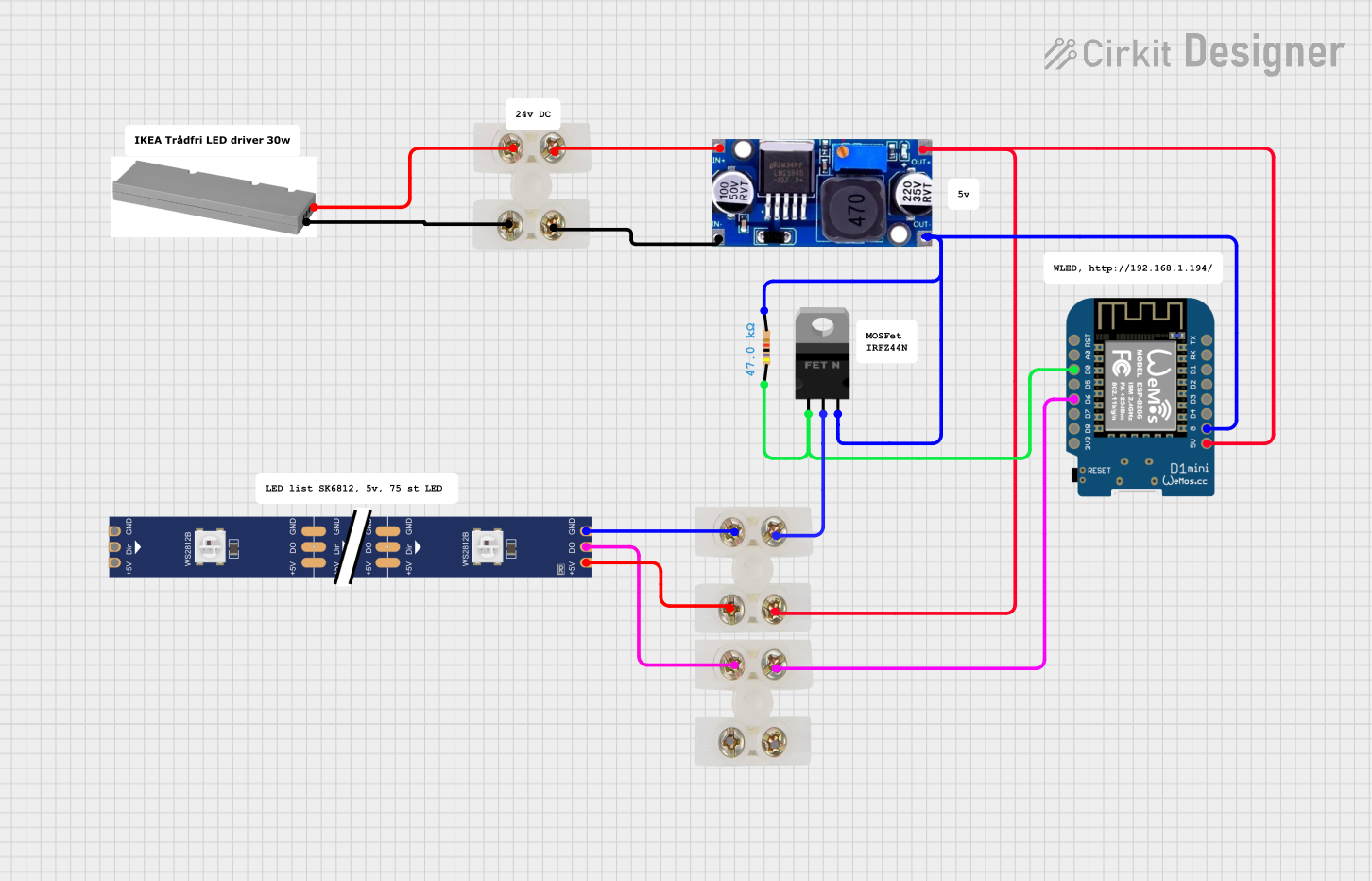 Open Project in Cirkit Designer
Explore Projects Built with Led Strip 5V
Open Project in Cirkit DesignerOpen Project in Cirkit DesignerOpen Project in Cirkit DesignerOpen Project in Cirkit DesignerCommon Applications
- Ambient lighting for homes and offices
- Backlighting for TVs, monitors, or furniture
- Accent lighting for architectural designs
- Decorative lighting for events and holidays
- DIY electronics and Arduino-based projects
Technical Specifications
Key Technical Details
| Parameter | Specification |
|---|---|
| Operating Voltage | 5V DC |
| Power Consumption | Varies by length (e.g., ~0.3W per LED) |
| LED Type | Surface-mounted LEDs (SMD) |
| LED Density | Typically 30, 60, or 144 LEDs/m |
| Color Options | RGB (addressable) or single color |
| Control Protocol | WS2812B (for addressable RGB strips) |
| Operating Temperature | -20°C to 60°C |
| Strip Length | Customizable (e.g., 1m, 5m rolls) |
| Waterproofing | Optional (IP20, IP65, or IP67) |
Pin Configuration and Descriptions
The LED Strip 5V typically has three pins for connection:
| Pin Name | Description |
|---|---|
| +5V | Power supply input (connect to 5V DC source) |
| GND | Ground connection |
| DATA | Data input for controlling LEDs (for addressable strips) |
Note: Non-addressable LED strips may only have two pins: +5V and GND.
Usage Instructions
How to Use the LED Strip in a Circuit
- Power Supply: Ensure you have a 5V DC power supply capable of providing sufficient current for the entire strip. Calculate the current requirement based on the number of LEDs (e.g., ~60mA per RGB LED at full brightness).
- Connections:
- Connect the +5V pin of the strip to the positive terminal of the power supply.
- Connect the GND pin to the ground terminal of the power supply.
- For addressable strips, connect the DATA pin to the microcontroller's data output pin (e.g., Arduino).
- Control:
- For addressable RGB strips, use a microcontroller (e.g., Arduino UNO) to send data signals to the DATA pin.
- Install a resistor (330–470 ohms) between the microcontroller's data pin and the strip's DATA pin to prevent signal noise.
- Add a capacitor (e.g., 1000µF, 6.3V or higher) across the +5V and GND pins to stabilize the power supply.
Important Considerations
- Power Budget: Ensure your power supply can handle the total current draw of the strip.
- Heat Management: Avoid overheating by not running the LEDs at full brightness for extended periods.
- Voltage Drop: For longer strips, voltage drop may occur. Use power injection at intervals to maintain consistent brightness.
- Polarity: Double-check connections to avoid damaging the strip.
Example Code for Arduino UNO
Below is an example of how to control an addressable RGB LED strip using the Arduino UNO and the Adafruit NeoPixel library:
#include <Adafruit_NeoPixel.h>

// Define the number of LEDs in the strip
#define NUM_LEDS 30

// Define the pin connected to the DATA pin of the LED strip
#define DATA_PIN 6

// Create a NeoPixel object
Adafruit_NeoPixel strip = Adafruit_NeoPixel(NUM_LEDS, DATA_PIN, NEO_GRB + NEO_KHZ800);

void setup() {
  strip.begin();  // Initialize the LED strip
  strip.show();   // Turn off all LEDs initially
}

void loop() {
  // Example: Set all LEDs to red
  for (int i = 0; i < NUM_LEDS; i++) {
    strip.setPixelColor(i, strip.Color(255, 0, 0)); // Red color
  }
  strip.show();  // Update the strip to display the color
  delay(1000);   // Wait for 1 second

  // Example: Turn off all LEDs
  for (int i = 0; i < NUM_LEDS; i++) {
    strip.setPixelColor(i, strip.Color(0, 0, 0)); // Turn off
  }
  strip.show();  // Update the strip to turn off LEDs
  delay(1000);   // Wait for 1 second
}
Note: Install the Adafruit NeoPixel library in the Arduino IDE before uploading the code.
Troubleshooting and FAQs
Common Issues and Solutions
LEDs Not Lighting Up:
- Check the power supply and ensure it is providing 5V.
- Verify all connections, especially the +5V and GND pins.
- For addressable strips, ensure the DATA pin is connected to the correct microcontroller pin.
Flickering or Unstable Colors:
- Add a resistor (330–470 ohms) between the microcontroller's data pin and the strip's DATA pin.
- Use a capacitor (e.g., 1000µF) across the power supply terminals to stabilize voltage.
Voltage Drop on Long Strips:
- Inject power at intervals along the strip to maintain consistent brightness.
- Use thicker wires to reduce resistance.
Incorrect Colors Displayed:
- Ensure the correct control protocol (e.g., WS2812B) is selected in your code.
- Verify the wiring order (e.g., DATA, +5V, GND).
FAQs
Q: Can I cut the LED strip to a custom length?
A: Yes, the strip can be cut at marked intervals (usually every 3 LEDs). Ensure you cut only at the designated points.
Q: Can I extend the LED strip?
A: Yes, you can connect multiple strips in series, but ensure the power supply can handle the total current draw. For long strips, consider power injection.
Q: Is the LED strip waterproof?
A: Waterproofing depends on the IP rating. Check the product specifications (e.g., IP65 for splash resistance, IP67 for submersion).
Q: Can I control the strip without a microcontroller?
A: Non-addressable strips can be controlled with a simple switch or dimmer. Addressable strips require a microcontroller for precise control.
By following this documentation, you can effectively integrate the LED Strip 5V into your projects and troubleshoot common issues with ease.