
How to Use IR sensor: Examples, Pinouts, and Specs
 Design with IR sensor in Cirkit Designer
Introduction
An IR (Infrared) sensor is an electronic device that detects infrared radiation emitted by objects. It is widely used in various applications such as proximity sensing, motion detection, and remote control systems. IR sensors are versatile and can be used in both analog and digital systems, making them a popular choice for robotics, automation, and consumer electronics.
Common applications of IR sensors include:
- Obstacle detection in robotics
- Motion detection in security systems
- Line-following robots
- Remote control signal reception
- Non-contact temperature measurement
Explore Projects Built with IR sensor
 Open Project in Cirkit Designer
 Open Project in Cirkit Designer
 Open Project in Cirkit Designer
 Open Project in Cirkit Designer
Explore Projects Built with IR sensor
Open Project in Cirkit DesignerOpen Project in Cirkit DesignerOpen Project in Cirkit DesignerOpen Project in Cirkit DesignerTechnical Specifications
Below are the general technical specifications of a typical IR sensor module:
| Parameter | Value |
|---|---|
| Operating Voltage | 3.3V to 5V |
| Operating Current | 20mA (typical) |
| Detection Range | 2 cm to 30 cm (varies by model) |
| Output Type | Digital (High/Low) or Analog |
| Wavelength | 760 nm to 1 mm (Infrared range) |
| Response Time | < 2 ms |
| Operating Temperature | -25°C to 85°C |
Pin Configuration
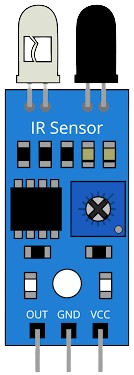
The IR sensor module typically has three pins. Below is the pinout description:
| Pin | Name | Description |
|---|---|---|
| 1 | VCC | Power supply pin (3.3V to 5V) |
| 2 | GND | Ground connection |
| 3 | OUT | Output pin (Digital or Analog signal, depending on model) |
Usage Instructions
How to Use the IR Sensor in a Circuit
- Power the Sensor: Connect the VCC pin to a 3.3V or 5V power source and the GND pin to the ground.
- Connect the Output: Connect the OUT pin to a microcontroller (e.g., Arduino) or any other processing unit. For digital output, the pin will output HIGH (1) when an object is detected and LOW (0) otherwise. For analog output, the voltage will vary based on the distance of the object.
- Adjust Sensitivity (if applicable): Some IR sensor modules have a potentiometer to adjust the detection range or sensitivity. Turn the potentiometer clockwise or counterclockwise to fine-tune the sensor.
Important Considerations and Best Practices
- Avoid Ambient Light Interference: IR sensors can be affected by strong ambient light. Use them in controlled lighting conditions or shield the sensor from direct sunlight.
- Optimal Placement: Ensure the sensor is placed at an appropriate angle and distance for accurate detection.
- Power Supply Stability: Use a stable power source to avoid false readings.
- Testing Before Deployment: Test the sensor in the actual environment to ensure reliable performance.
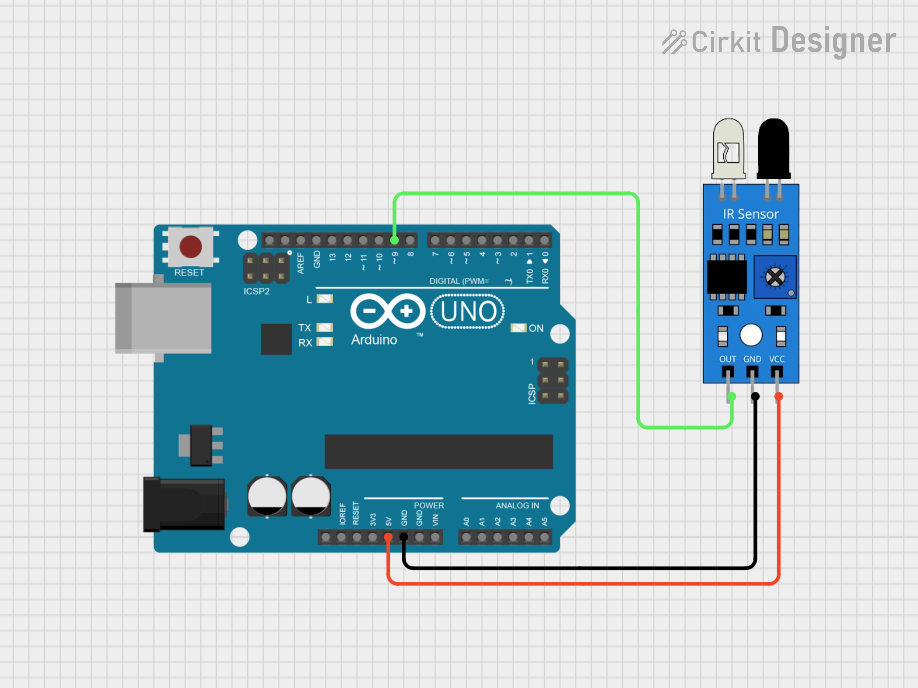
Example: Connecting an IR Sensor to an Arduino UNO
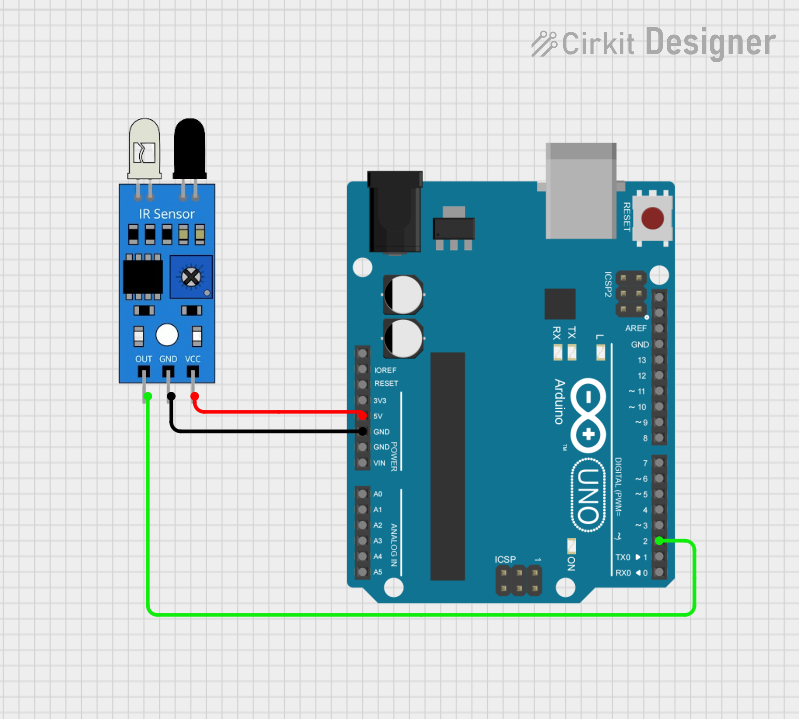
Below is an example of how to connect and use an IR sensor with an Arduino UNO for obstacle detection:
Circuit Connections
- Connect the VCC pin of the IR sensor to the 5V pin on the Arduino.
- Connect the GND pin of the IR sensor to the GND pin on the Arduino.
- Connect the OUT pin of the IR sensor to digital pin 2 on the Arduino.
Arduino Code
// IR Sensor Obstacle Detection Example
// Connect the OUT pin of the IR sensor to Arduino digital pin 2

const int irSensorPin = 2;  // IR sensor output pin
const int ledPin = 13;      // Onboard LED pin for indication

void setup() {
  pinMode(irSensorPin, INPUT);  // Set IR sensor pin as input
  pinMode(ledPin, OUTPUT);      // Set LED pin as output
  Serial.begin(9600);           // Initialize serial communication
}

void loop() {
  int sensorValue = digitalRead(irSensorPin);  // Read the IR sensor output

  if (sensorValue == HIGH) {
    // Object detected
    digitalWrite(ledPin, HIGH);  // Turn on LED
    Serial.println("Object detected!");
  } else {
    // No object detected
    digitalWrite(ledPin, LOW);   // Turn off LED
    Serial.println("No object detected.");
  }

  delay(100);  // Small delay for stability
}
Troubleshooting and FAQs
Common Issues and Solutions
Sensor Not Detecting Objects
- Cause: Incorrect wiring or insufficient power supply.
- Solution: Double-check the connections and ensure the power supply is stable.
False Readings
- Cause: Ambient light interference or reflective surfaces.
- Solution: Shield the sensor from direct sunlight and avoid using it near highly reflective objects.
Short Detection Range
- Cause: Sensitivity not adjusted properly.
- Solution: Use the onboard potentiometer to adjust the detection range.
Output Signal Fluctuates
- Cause: Electrical noise or unstable power supply.
- Solution: Add a decoupling capacitor (e.g., 0.1 µF) across the power pins.
FAQs
Q1: Can the IR sensor detect transparent objects?
A1: IR sensors may struggle to detect transparent objects like glass. Use specialized sensors for such applications.
Q2: What is the maximum range of an IR sensor?
A2: The range depends on the model, but typical IR sensors can detect objects up to 30 cm.
Q3: Can I use an IR sensor outdoors?
A3: Yes, but ensure it is shielded from direct sunlight to avoid interference.
Q4: How do I differentiate between analog and digital IR sensors?
A4: Check the module's datasheet. Analog sensors output a variable voltage, while digital sensors output HIGH or LOW signals.