
How to Use LED: Two Pin (green): Examples, Pinouts, and Specs
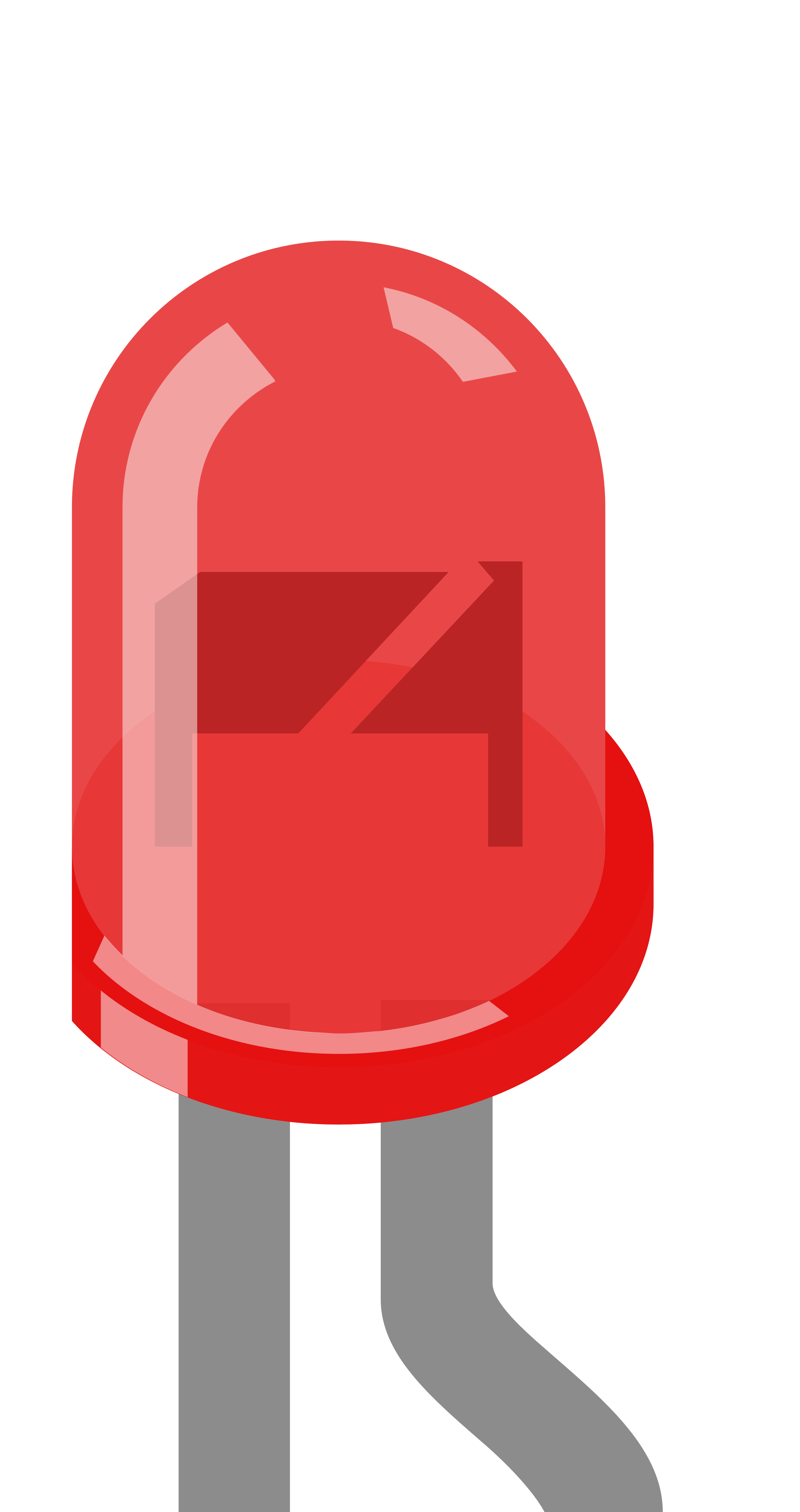
 Design with LED: Two Pin (green) in Cirkit Designer
Introduction
A light-emitting diode (LED) is a semiconductor device that emits light when an electric current flows through it. The two-pin green LED is a common type of LED used in electronic circuits to indicate power, status, or activity. The green color is often associated with an "on" or "active" state, making it a popular choice for visual feedback in various applications.
Explore Projects Built with LED: Two Pin (green)
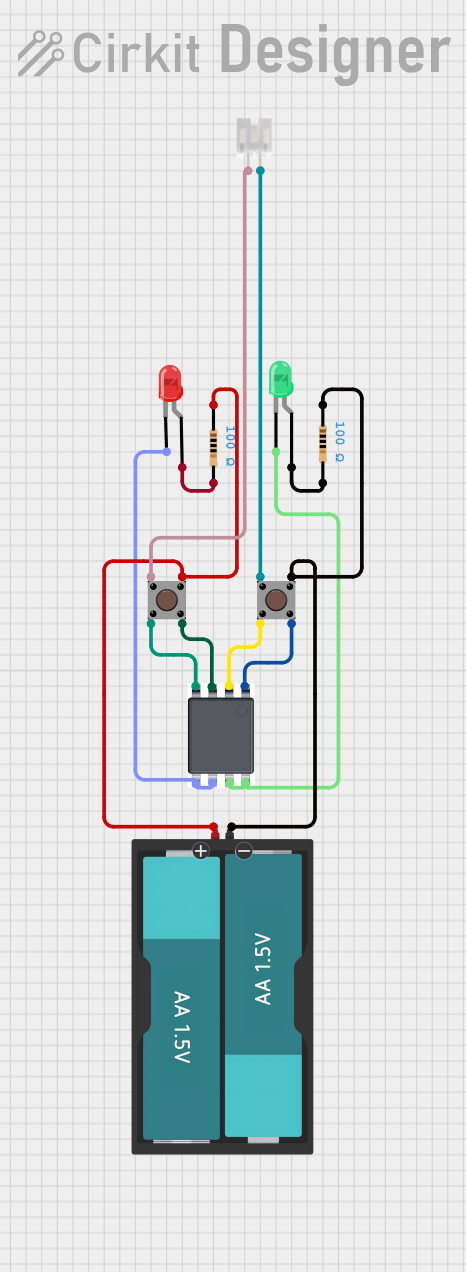 Open Project in Cirkit Designer
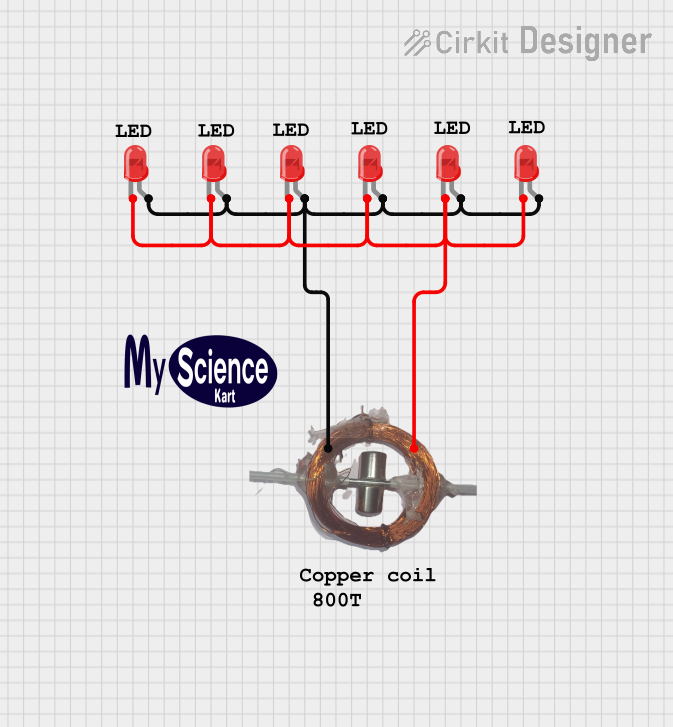 Open Project in Cirkit Designer
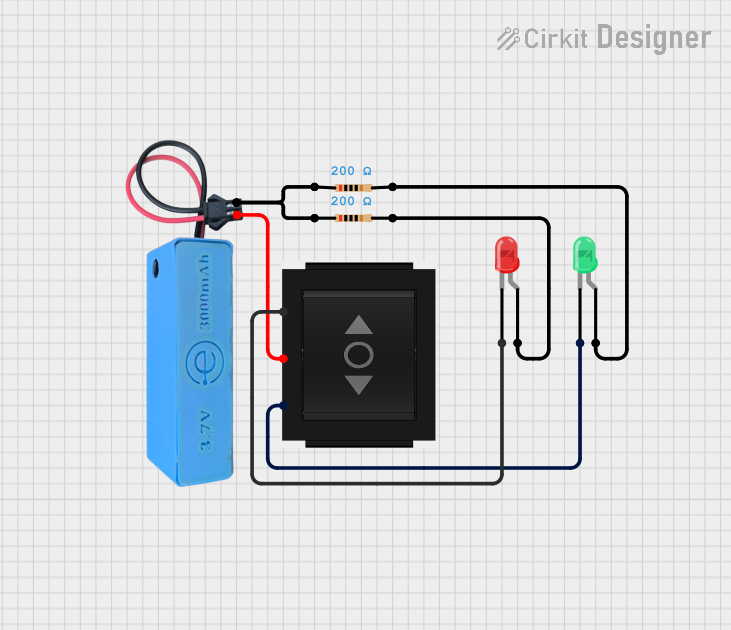 Open Project in Cirkit Designer
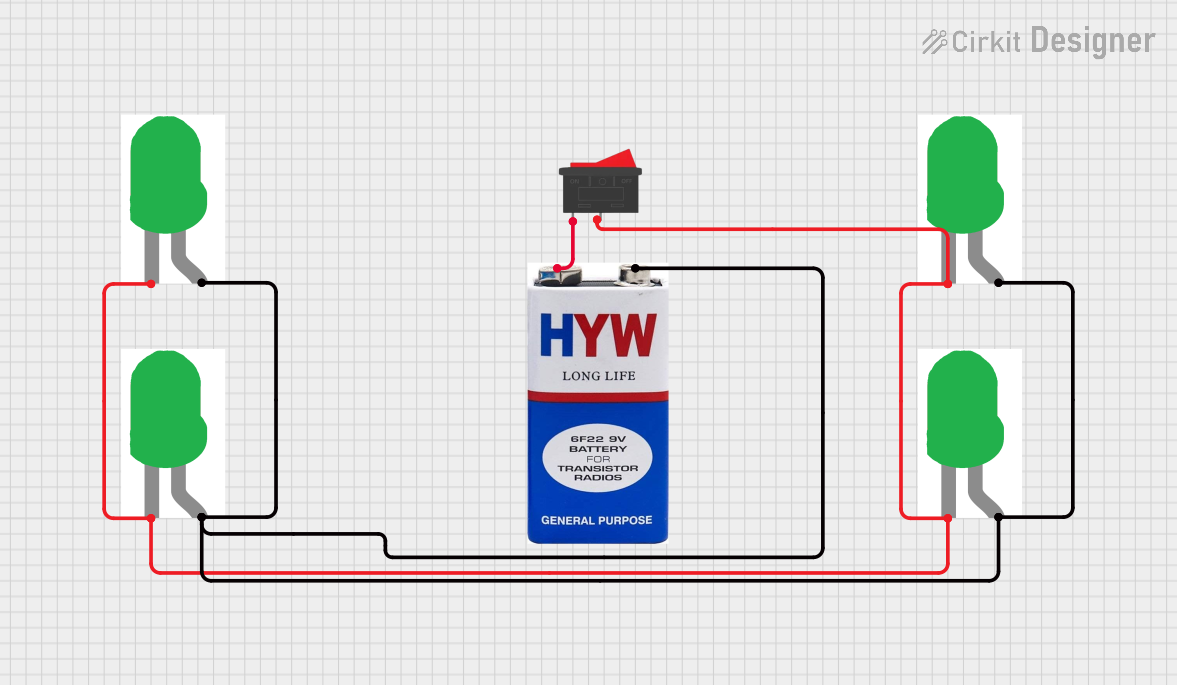 Open Project in Cirkit Designer
Explore Projects Built with LED: Two Pin (green)
Open Project in Cirkit DesignerOpen Project in Cirkit DesignerOpen Project in Cirkit DesignerOpen Project in Cirkit DesignerCommon Applications and Use Cases
- Power or status indicators in electronic devices
- Visual feedback in microcontroller projects
- Signal indicators in communication circuits
- Decorative or ambient lighting in small-scale projects
Technical Specifications
Below are the key technical details for a standard two-pin green LED:
| Parameter | Value |
|---|---|
| Forward Voltage (Vf) | 2.0V to 3.2V |
| Forward Current (If) | 20mA (typical), 30mA (maximum) |
| Reverse Voltage (Vr) | 5V (maximum) |
| Wavelength | 520nm to 530nm (green light) |
| Viewing Angle | 20° to 30° |
| Power Dissipation | 60mW (maximum) |
| Operating Temperature | -40°C to +85°C |
Pin Configuration and Descriptions
The two-pin green LED has a simple pinout:
| Pin | Description |
|---|---|
| Anode (+) | The longer pin, connected to the positive terminal of the power supply or circuit. |
| Cathode (-) | The shorter pin, connected to the negative terminal or ground (GND). |
Note: If the pins are trimmed or indistinguishable, the flat edge on the LED casing indicates the cathode (-).
Usage Instructions
How to Use the Component in a Circuit
Determine the Resistor Value: LEDs require a current-limiting resistor to prevent damage. Use Ohm's Law to calculate the resistor value: [ R = \frac{V_{supply} - V_f}{I_f} ]
- (V_{supply}): Supply voltage
- (V_f): Forward voltage of the LED (e.g., 2.2V for green LEDs)
- (I_f): Desired forward current (e.g., 20mA or 0.02A)
For example, with a 5V supply and a forward voltage of 2.2V: [ R = \frac{5V - 2.2V}{0.02A} = 140\Omega ] Use the nearest standard resistor value (e.g., 150Ω).
Connect the LED:
- Connect the anode (+) to the positive terminal of the power supply through the resistor.
- Connect the cathode (-) to the ground (GND).
Test the Circuit: Power the circuit and observe the LED emitting green light.
Important Considerations and Best Practices
- Polarity Matters: LEDs are polarized components. Reversing the polarity may prevent the LED from lighting up or damage it.
- Use a Resistor: Always use a current-limiting resistor to avoid exceeding the maximum forward current.
- Avoid Overheating: Prolonged operation at high currents can reduce the LED's lifespan.
- Breadboard Testing: For prototyping, use a breadboard to test the circuit before soldering.
Example: Connecting to an Arduino UNO
The green LED can be easily interfaced with an Arduino UNO for basic projects. Below is an example of blinking the LED:
// Example: Blink a green LED connected to pin 13 of Arduino UNO

// Define the pin where the LED is connected
const int ledPin = 13;

void setup() {
  pinMode(ledPin, OUTPUT); // Set the LED pin as an output
}

void loop() {
  digitalWrite(ledPin, HIGH); // Turn the LED on
  delay(1000);                // Wait for 1 second
  digitalWrite(ledPin, LOW);  // Turn the LED off
  delay(1000);                // Wait for 1 second
}
Note: Connect the LED's anode to pin 13 through a 220Ω resistor, and the cathode to GND.
Troubleshooting and FAQs
Common Issues and Solutions
LED Does Not Light Up:
Cause: Incorrect polarity.
Solution: Ensure the anode is connected to the positive terminal and the cathode to GND.
Cause: Missing or incorrect resistor value.
Solution: Verify the resistor value and connections.
Cause: Insufficient supply voltage.
Solution: Ensure the supply voltage exceeds the forward voltage of the LED.
LED is Dim:
- Cause: High resistor value.
- Solution: Use a lower resistor value, but ensure the current does not exceed 20mA.
LED Burns Out Quickly:
- Cause: Excessive current.
- Solution: Use a proper current-limiting resistor to protect the LED.
LED Flickers:
- Cause: Unstable power supply.
- Solution: Use a stable power source or add a capacitor to smooth the voltage.
FAQs
Q1: Can I connect the LED directly to a 3.3V or 5V supply without a resistor?
A1: No, doing so will likely damage the LED due to excessive current. Always use a current-limiting resistor.
Q2: How do I identify the anode and cathode if the pins are trimmed?
A2: Look for the flat edge on the LED casing, which indicates the cathode (-). Alternatively, use a multimeter in diode mode to test polarity.
Q3: Can I use the green LED with a 12V power supply?
A3: Yes, but you must calculate and use an appropriate resistor to limit the current.
Q4: Why is the LED not as bright as expected?
A4: Check the resistor value and ensure the forward current is within the recommended range (20mA).