
How to Use LCD: Examples, Pinouts, and Specs
 Design with LCD in Cirkit Designer
Introduction
The Edusoft LCD (Part ID: LCD) is a flat-panel display module that utilizes liquid crystal technology to modulate light and display information. This component is widely used in various electronic applications due to its low power consumption, compact size, and ability to produce sharp, clear images. It is ideal for projects requiring visual output, such as text, numbers, or simple graphics.
Explore Projects Built with LCD
 Open Project in Cirkit Designer
 Open Project in Cirkit Designer
 Open Project in Cirkit Designer
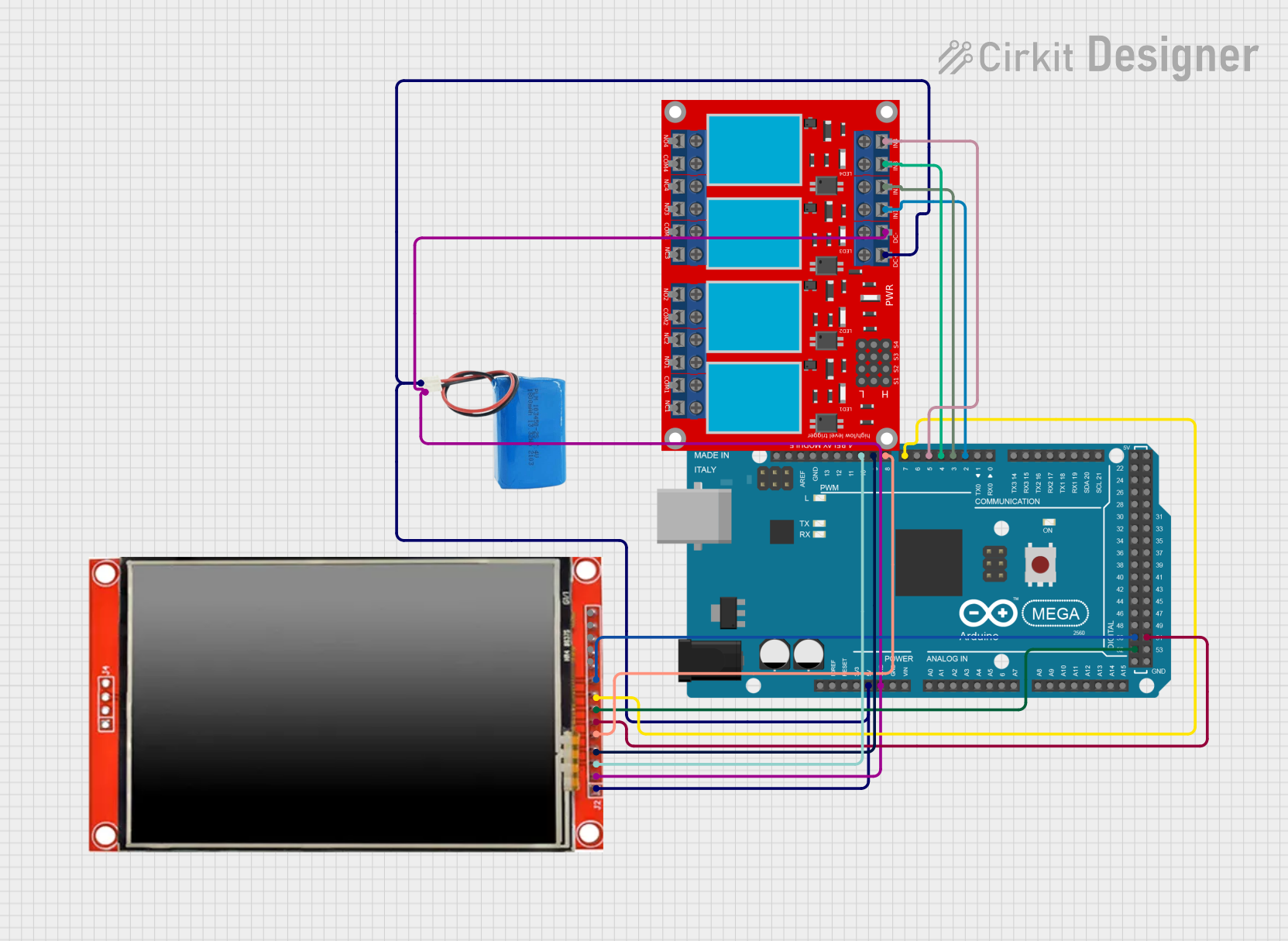 Open Project in Cirkit Designer
Explore Projects Built with LCD
Open Project in Cirkit DesignerOpen Project in Cirkit DesignerOpen Project in Cirkit DesignerOpen Project in Cirkit DesignerCommon Applications
- Digital clocks and timers
- Embedded systems and microcontroller projects
- Consumer electronics (e.g., calculators, remote controls)
- Industrial control panels
- Educational and prototyping purposes
Technical Specifications
Key Technical Details
| Parameter | Value |
|---|---|
| Manufacturer | Edusoft |
| Part ID | LCD |
| Display Type | Liquid Crystal Display (LCD) |
| Operating Voltage | 4.7V - 5.3V |
| Operating Current | 1mA - 2mA (typical) |
| Backlight Voltage | 4.2V - 5.0V |
| Backlight Current | 15mA - 20mA |
| Operating Temperature | -20°C to 70°C |
| Dimensions | 80mm x 36mm x 12mm |
| Interface Type | Parallel (4-bit or 8-bit mode) |
Pin Configuration
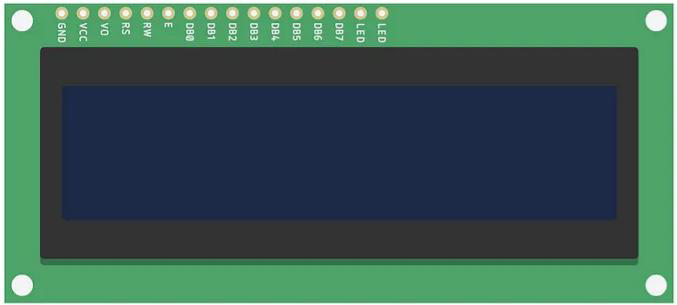
The Edusoft LCD module typically comes with a 16-pin interface. Below is the pinout description:
| Pin Number | Pin Name | Description |
|---|---|---|
| 1 | VSS | Ground (0V) |
| 2 | VDD | Power supply (4.7V - 5.3V) |
| 3 | VO | Contrast adjustment (connect to a potentiometer) |
| 4 | RS | Register Select (0: Command, 1: Data) |
| 5 | RW | Read/Write (0: Write, 1: Read) |
| 6 | E | Enable signal (triggers data read/write) |
| 7 | D0 | Data bit 0 (used in 8-bit mode only) |
| 8 | D1 | Data bit 1 (used in 8-bit mode only) |
| 9 | D2 | Data bit 2 (used in 8-bit mode only) |
| 10 | D3 | Data bit 3 (used in 8-bit mode only) |
| 11 | D4 | Data bit 4 (used in both 4-bit and 8-bit modes) |
| 12 | D5 | Data bit 5 (used in both 4-bit and 8-bit modes) |
| 13 | D6 | Data bit 6 (used in both 4-bit and 8-bit modes) |
| 14 | D7 | Data bit 7 (used in both 4-bit and 8-bit modes) |
| 15 | LED+ | Backlight anode (connect to +5V via a resistor) |
| 16 | LED- | Backlight cathode (connect to ground) |
Usage Instructions
How to Use the LCD in a Circuit
- Power Supply: Connect the VSS pin to ground and the VDD pin to a 5V power source.
- Contrast Adjustment: Connect the VO pin to the wiper of a 10kΩ potentiometer. Adjust the potentiometer to set the display contrast.
- Control Pins:
- Connect the RS pin to a digital output pin of your microcontroller.
- Connect the RW pin to ground (for write-only mode).
- Connect the E pin to another digital output pin of your microcontroller.
- Data Pins:
- For 4-bit mode, connect D4 to D7 to the microcontroller and leave D0 to D3 unconnected.
- For 8-bit mode, connect all data pins (D0 to D7) to the microcontroller.
- Backlight: Connect LED+ to 5V through a 220Ω resistor and LED- to ground.
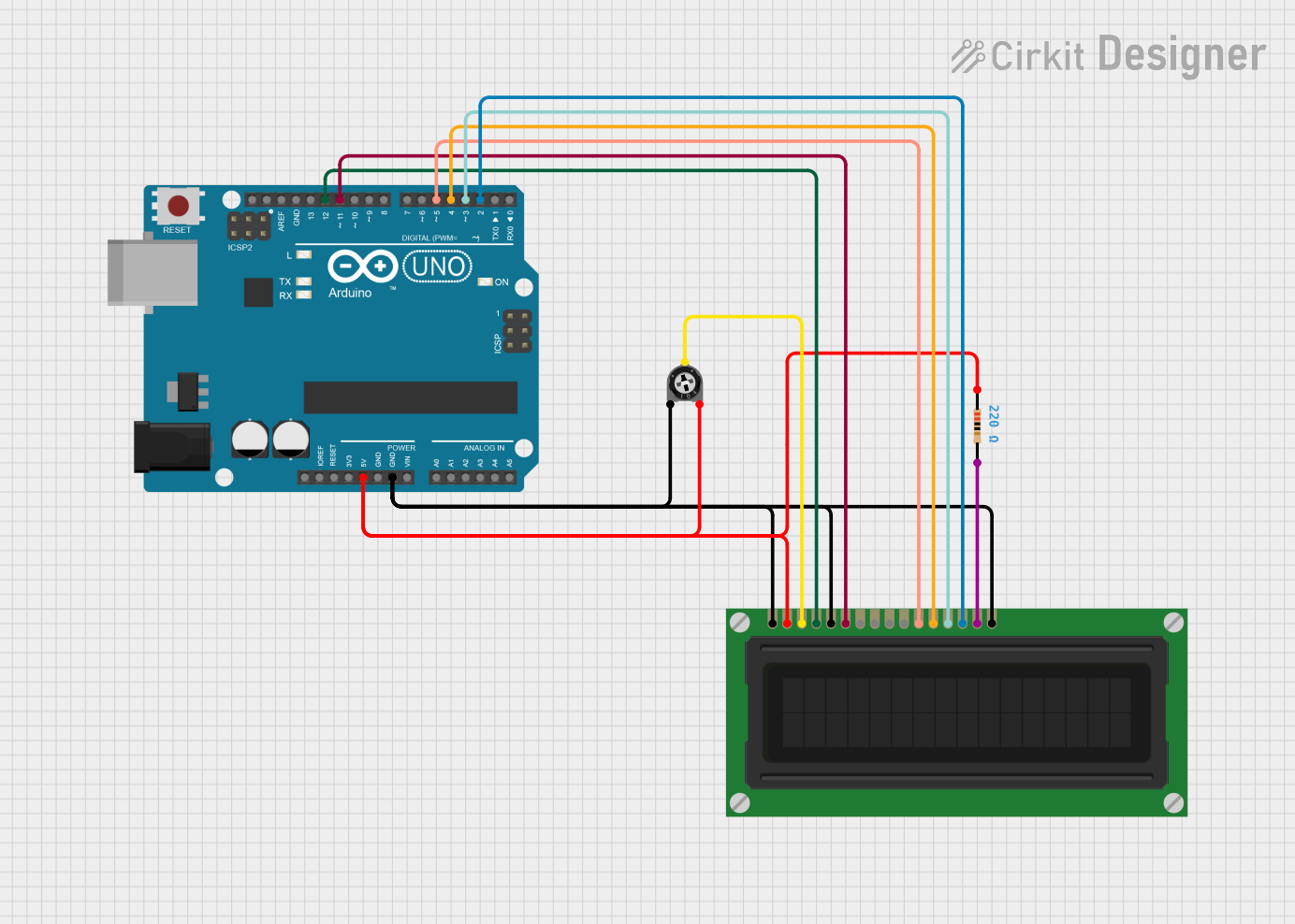
Example: Connecting to an Arduino UNO
Below is an example of how to connect and program the Edusoft LCD in 4-bit mode using an Arduino UNO.
Circuit Connections
| LCD Pin | Arduino Pin |
|---|---|
| VSS | GND |
| VDD | 5V |
| VO | Potentiometer (middle pin) |
| RS | Pin 7 |
| RW | GND |
| E | Pin 8 |
| D4 | Pin 9 |
| D5 | Pin 10 |
| D6 | Pin 11 |
| D7 | Pin 12 |
| LED+ | 5V (via 220Ω resistor) |
| LED- | GND |
Arduino Code
#include <LiquidCrystal.h>

// Initialize the library with the numbers of the interface pins
LiquidCrystal lcd(7, 8, 9, 10, 11, 12);

void setup() {
  // Set up the LCD's number of columns and rows
  lcd.begin(16, 2); // 16 columns, 2 rows
  lcd.print("Hello, World!"); // Print a message to the LCD
}

void loop() {
  // Move the cursor to the second row, first column
  lcd.setCursor(0, 1);
  lcd.print(millis() / 1000); // Display the elapsed time in seconds
}
Important Considerations
- Always use a current-limiting resistor for the backlight to prevent damage.
- Avoid exposing the LCD to extreme temperatures or humidity.
- Ensure proper grounding to avoid noise interference in the display.
Troubleshooting and FAQs
Common Issues
No Display on the Screen
- Cause: Incorrect power supply or contrast setting.
- Solution: Verify the power connections and adjust the potentiometer for contrast.
Flickering or Unstable Display
- Cause: Poor grounding or loose connections.
- Solution: Check all connections and ensure a solid ground.
Incorrect Characters Displayed
- Cause: Data pins not properly connected or incorrect initialization in code.
- Solution: Verify the wiring and ensure the code matches the pin configuration.
Backlight Not Working
- Cause: Missing or incorrect resistor for the backlight.
- Solution: Add a 220Ω resistor in series with the LED+ pin.
FAQs
Q: Can I use the LCD with a 3.3V microcontroller?
A: Yes, but you will need a level shifter or voltage divider for the control and data pins.Q: How do I display custom characters?
A: Use thecreateChar()function in the LiquidCrystal library to define custom characters.Q: Can I use the LCD in 8-bit mode?
A: Yes, connect all data pins (D0 to D7) to the microcontroller and modify the code accordingly.
This concludes the documentation for the Edusoft LCD module.