
How to Use OLED Display: Examples, Pinouts, and Specs
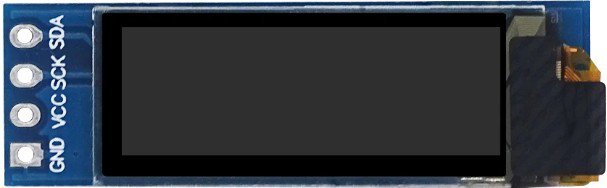
 Design with OLED Display in Cirkit Designer
Introduction
An OLED (Organic Light Emitting Diode) display is a screen technology that uses organic compounds to emit light when an electric current is applied. Unlike traditional LCDs, OLED displays do not require a backlight, resulting in deeper blacks, higher contrast ratios, and more vibrant colors. Additionally, OLED displays are energy-efficient and offer wide viewing angles, making them suitable for a variety of applications.
Explore Projects Built with OLED Display
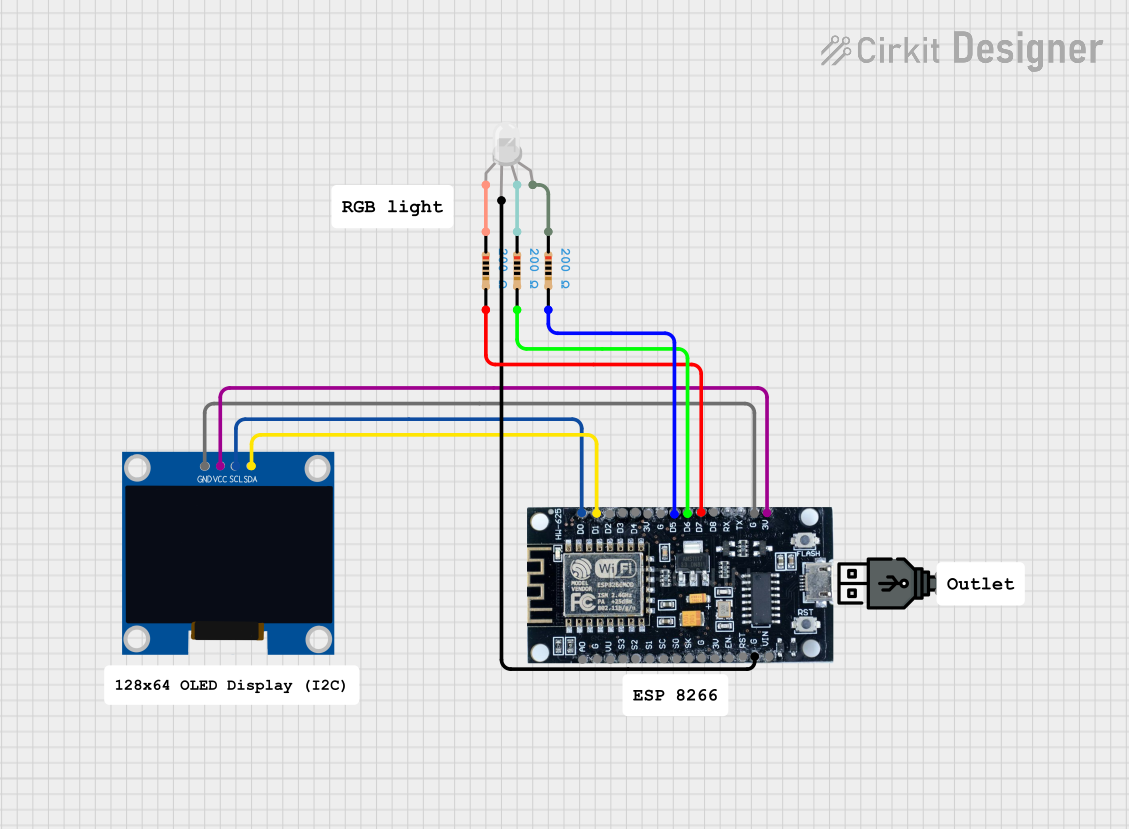 Open Project in Cirkit Designer
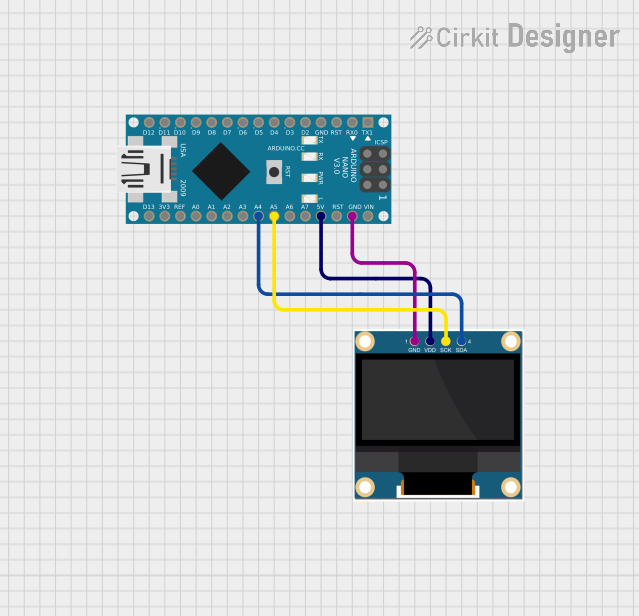 Open Project in Cirkit Designer
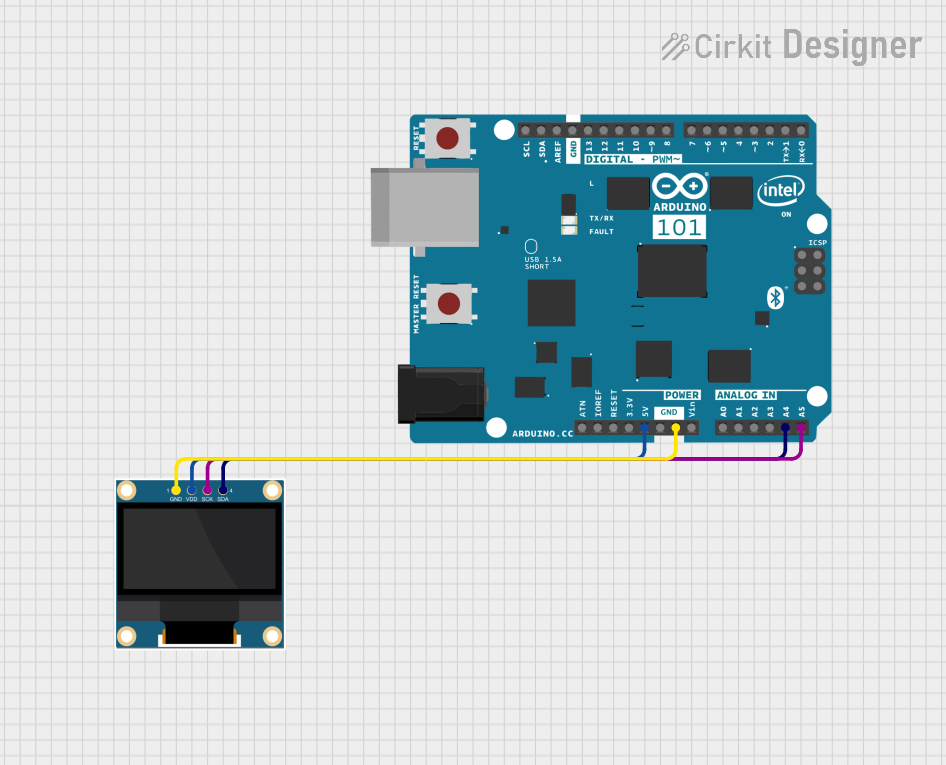 Open Project in Cirkit Designer
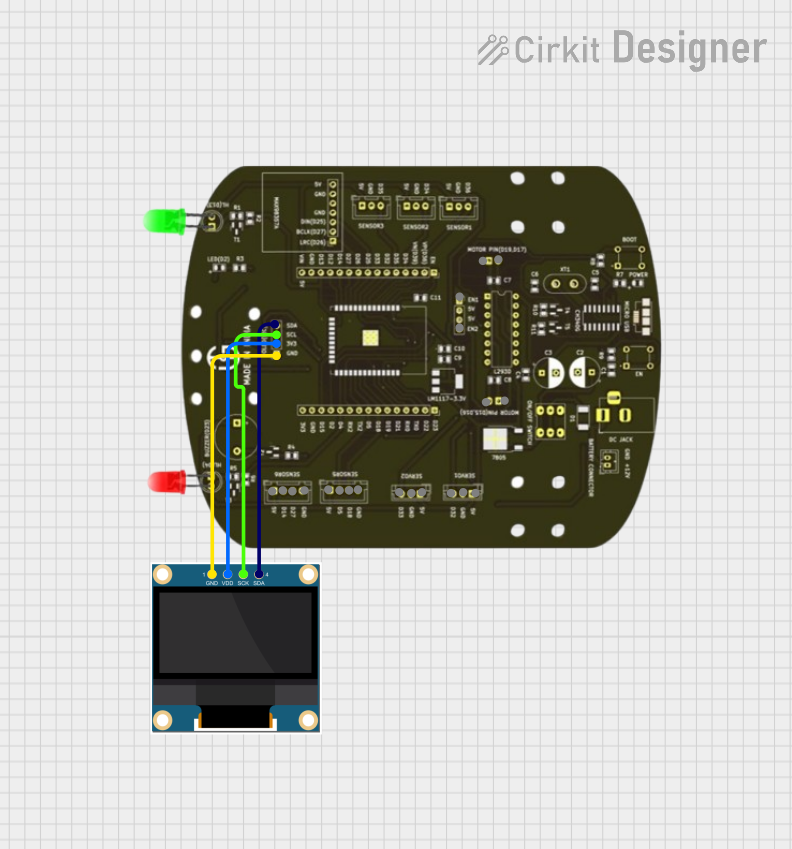 Open Project in Cirkit Designer
Explore Projects Built with OLED Display
Open Project in Cirkit DesignerOpen Project in Cirkit DesignerOpen Project in Cirkit DesignerOpen Project in Cirkit DesignerCommon Applications and Use Cases
- Wearable devices (e.g., smartwatches, fitness trackers)
- Consumer electronics (e.g., smartphones, televisions)
- Embedded systems and microcontroller projects
- Industrial equipment displays
- IoT devices and dashboards
Technical Specifications
Below are the general technical specifications for a typical 0.96-inch OLED display module (commonly used in microcontroller projects):
| Specification | Details |
|---|---|
| Display Type | OLED (Organic Light Emitting Diode) |
| Resolution | 128 x 64 pixels |
| Interface | I2C or SPI |
| Operating Voltage | 3.3V - 5V |
| Current Consumption | ~20mA (varies with brightness) |
| Viewing Angle | ~160° |
| Display Color | Monochrome (white, blue, or yellow) |
| Dimensions | ~27mm x 27mm x 4mm |
Pin Configuration and Descriptions
The pinout for a typical I2C-based OLED display module is as follows:
| Pin | Name | Description |
|---|---|---|
| 1 | GND | Ground connection |
| 2 | VCC | Power supply (3.3V or 5V) |
| 3 | SCL | Serial Clock Line for I2C communication |
| 4 | SDA | Serial Data Line for I2C communication |
For SPI-based OLED modules, additional pins such as RES, DC, and CS may be present.
Usage Instructions
How to Use the OLED Display in a Circuit
- Power the Display: Connect the
VCCpin to a 3.3V or 5V power source and theGNDpin to ground. - Connect Communication Lines:
- For I2C: Connect the
SCLpin to the microcontroller's clock line and theSDApin to the data line. - For SPI: Connect the additional pins (
RES,DC,CS) to the appropriate microcontroller pins as per the datasheet.
- For I2C: Connect the
- Install Required Libraries: If using an Arduino, install the
Adafruit_GFXandAdafruit_SSD1306libraries via the Arduino Library Manager. - Write Code: Use the libraries to initialize the display and send data to it.
Important Considerations and Best Practices
- Voltage Compatibility: Ensure the OLED module's operating voltage matches your microcontroller's logic level (3.3V or 5V).
- I2C Address: Most OLED modules have a default I2C address (e.g.,
0x3C), but some allow address changes via solder jumpers. - Brightness Control: Prolong the lifespan of the OLED by reducing brightness when full intensity is not required.
- Avoid Burn-In: Avoid displaying static images for extended periods to prevent burn-in on the OLED screen.
Example Code for Arduino UNO
Below is an example of how to use a 128x64 I2C OLED display with an Arduino UNO:
#include <Wire.h>
#include <Adafruit_GFX.h>
#include <Adafruit_SSD1306.h>

// Define OLED display dimensions
#define SCREEN_WIDTH 128
#define SCREEN_HEIGHT 64

// Create an SSD1306 display object (I2C address 0x3C)
Adafruit_SSD1306 display(SCREEN_WIDTH, SCREEN_HEIGHT, &Wire, -1);

void setup() {
  // Initialize serial communication for debugging
  Serial.begin(9600);

  // Initialize the OLED display
  if (!display.begin(SSD1306_I2C_ADDRESS, 0x3C)) {
    Serial.println(F("SSD1306 allocation failed"));
    for (;;); // Halt execution if initialization fails
  }

  // Clear the display buffer
  display.clearDisplay();

  // Display a welcome message
  display.setTextSize(1); // Set text size
  display.setTextColor(SSD1306_WHITE); // Set text color
  display.setCursor(0, 0); // Set cursor position
  display.println(F("Hello, OLED!"));
  display.display(); // Render the text on the screen
  delay(2000); // Pause for 2 seconds
}

void loop() {
  // Example: Draw a rectangle on the screen
  display.clearDisplay(); // Clear the display buffer
  display.drawRect(10, 10, 50, 30, SSD1306_WHITE); // Draw a rectangle
  display.display(); // Render the rectangle on the screen
  delay(1000); // Pause for 1 second
}
Troubleshooting and FAQs
Common Issues and Solutions
Display Not Turning On:
- Verify the power connections (
VCCandGND). - Ensure the correct operating voltage (3.3V or 5V) is supplied.
- Check for loose or incorrect wiring.
- Verify the power connections (
No Output on the Screen:
- Confirm the I2C address matches the one in your code (default is
0x3C). - Ensure the required libraries (
Adafruit_GFXandAdafruit_SSD1306) are installed. - Check the
SCLandSDAconnections for proper communication.
- Confirm the I2C address matches the one in your code (default is
Flickering or Artifacts:
- Reduce the display brightness to minimize power draw.
- Ensure stable power supply and proper decoupling capacitors.
Burn-In or Image Retention:
- Avoid displaying static images for long durations.
- Use screen savers or periodically refresh the display content.
FAQs
Q: Can I use the OLED display with a Raspberry Pi?
A: Yes, OLED displays can be used with Raspberry Pi via I2C or SPI. Use libraries like luma.oled for Python.
Q: How do I change the I2C address of the OLED module?
A: Some modules have solder jumpers on the back to change the I2C address. Refer to the module's datasheet for details.
Q: Can I display graphics on the OLED?
A: Yes, the Adafruit_GFX library supports drawing shapes, images, and custom fonts.
Q: Is the OLED display compatible with 3.3V logic?
A: Most OLED modules are compatible with both 3.3V and 5V logic levels, but always check the datasheet to confirm.
By following this documentation, you can effectively integrate and troubleshoot an OLED display in your projects!