
How to Use TTL TO RS485 AUTO: Examples, Pinouts, and Specs
 Design with TTL TO RS485 AUTO in Cirkit Designer
Introduction
The TTL TO RS485 AUTO is a compact and efficient converter designed to automatically translate TTL (Transistor-Transistor Logic) signals to RS-485 signal levels. RS-485 is a widely used standard for serial communication, particularly in industrial and long-distance applications. This converter enables seamless communication between devices operating at different voltage levels, such as microcontrollers, sensors, and industrial equipment.
Explore Projects Built with TTL TO RS485 AUTO
 Open Project in Cirkit Designer
 Open Project in Cirkit Designer
 Open Project in Cirkit Designer
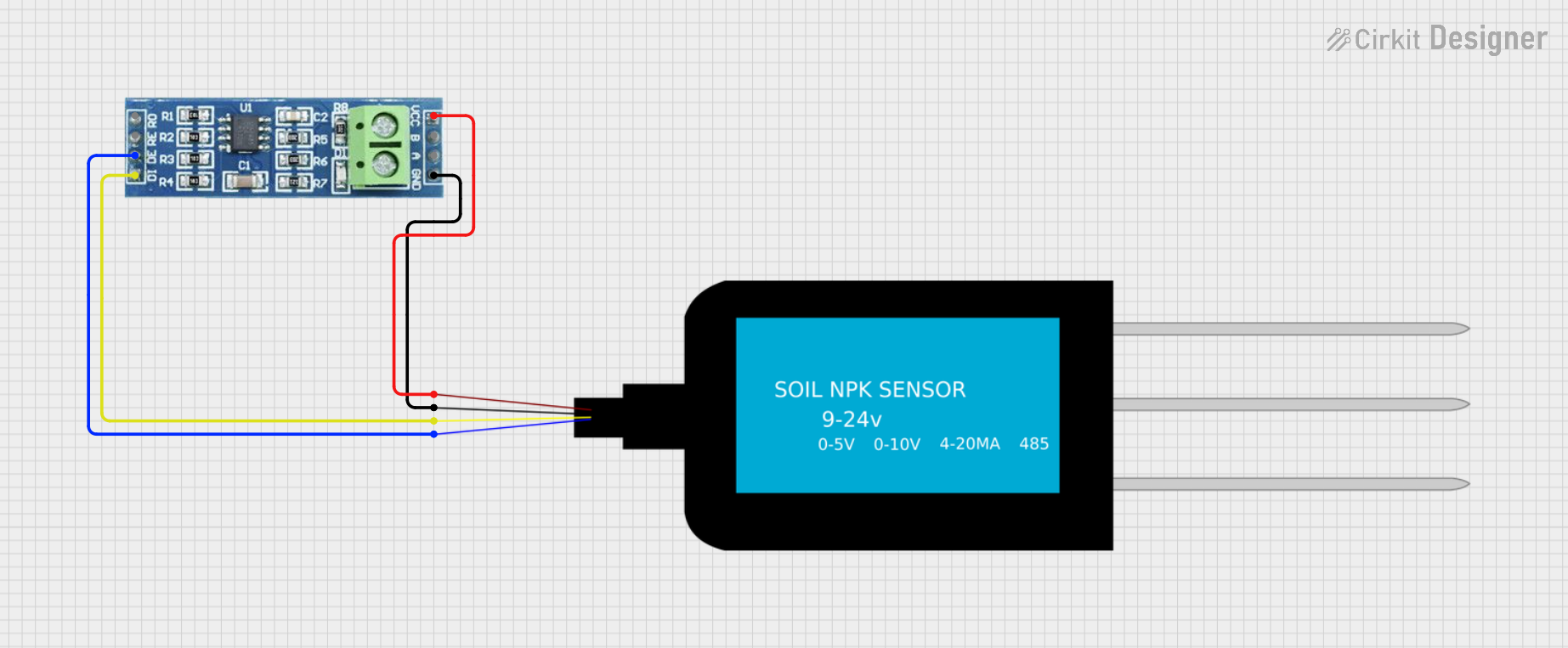 Open Project in Cirkit Designer
Explore Projects Built with TTL TO RS485 AUTO
Open Project in Cirkit DesignerOpen Project in Cirkit DesignerOpen Project in Cirkit DesignerOpen Project in Cirkit DesignerCommon Applications and Use Cases
- Connecting microcontrollers (e.g., Arduino, Raspberry Pi) to RS-485 networks
- Industrial automation and control systems
- Long-distance serial communication (up to 1200 meters)
- Interfacing with RS-485-based devices like motor controllers, sensors, and PLCs
- Multi-device communication in a half-duplex RS-485 network
Technical Specifications
Key Technical Details
- Input Signal: TTL (3.3V or 5V logic levels)
- Output Signal: RS-485 differential signal
- Communication Mode: Half-duplex (automatic direction control)
- Baud Rate: Up to 115200 bps
- Operating Voltage: 3.3V or 5V DC
- Power Consumption: Low power consumption (< 20mA typical)
- Communication Distance: Up to 1200 meters (depending on cable quality and baud rate)
- Operating Temperature: -40°C to 85°C
- Dimensions: Compact PCB module, typically 25mm x 15mm
Pin Configuration and Descriptions
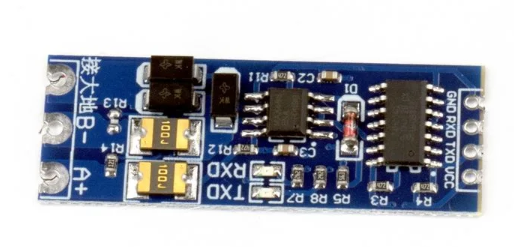
The TTL TO RS485 AUTO module typically has the following pin layout:
| Pin Name | Type | Description |
|---|---|---|
| VCC | Power Input | Connect to 3.3V or 5V DC power supply. |
| GND | Ground | Connect to the ground of the power supply and circuit. |
| TXD | TTL Input | Transmit data from the microcontroller or TTL device. |
| RXD | TTL Output | Receive data to the microcontroller or TTL device. |
| A (D+) | RS-485 Output | Non-inverting RS-485 signal line (connect to RS-485 device or network). |
| B (D-) | RS-485 Output | Inverting RS-485 signal line (connect to RS-485 device or network). |
Usage Instructions
How to Use the Component in a Circuit
- Power the Module: Connect the
VCCpin to a 3.3V or 5V DC power source and theGNDpin to the ground. - Connect TTL Signals:
- Connect the
TXDpin to the transmit pin (e.g., TX) of your microcontroller. - Connect the
RXDpin to the receive pin (e.g., RX) of your microcontroller.
- Connect the
- Connect RS-485 Signals:
- Connect the
A (D+)pin to the non-inverting line of the RS-485 device or network. - Connect the
B (D-)pin to the inverting line of the RS-485 device or network.
- Connect the
- Automatic Direction Control: The module automatically manages the direction of data flow, so no additional control pins are required.
- Termination Resistor (Optional): For long-distance communication, you may need to add a 120-ohm termination resistor between the
AandBlines at both ends of the RS-485 network.
Important Considerations and Best Practices
- Ensure that the power supply voltage matches the module's operating voltage (3.3V or 5V).
- Use twisted-pair cables for RS-485 connections to minimize noise and signal degradation.
- Avoid exceeding the maximum communication distance and baud rate for reliable operation.
- If multiple devices are connected to the RS-485 network, ensure proper termination and biasing resistors are used.
- Always connect the ground of the TTL device and the RS-485 network to ensure a common reference.
Example: Connecting to an Arduino UNO
Below is an example of how to use the TTL TO RS485 AUTO module with an Arduino UNO to send and receive data over an RS-485 network.
Circuit Diagram
- Connect
VCCto the Arduino's 5V pin. - Connect
GNDto the Arduino's GND pin. - Connect
TXDto the Arduino's TX (pin 1). - Connect
RXDto the Arduino's RX (pin 0). - Connect
A (D+)andB (D-)to the RS-485 network.
Arduino Code Example
// Example code for using TTL TO RS485 AUTO with Arduino UNO
// This code sends and receives data over RS-485

void setup() {
  Serial.begin(9600); // Initialize serial communication at 9600 baud
  delay(1000);        // Wait for the module to initialize
  Serial.println("RS-485 Communication Started");
}

void loop() {
  // Send data over RS-485
  Serial.println("Hello RS-485");
  delay(1000); // Wait for 1 second

  // Check if data is available to read
  if (Serial.available() > 0) {
    String receivedData = Serial.readString(); // Read incoming data
    Serial.print("Received: ");
    Serial.println(receivedData); // Print received data
  }
}
Troubleshooting and FAQs
Common Issues and Solutions
No Communication or Data Loss:
- Ensure the
A (D+)andB (D-)lines are correctly connected to the RS-485 network. - Verify that the baud rate of all devices on the RS-485 network matches.
- Check for proper termination resistors at both ends of the RS-485 network.
- Ensure the
Module Overheating:
- Ensure the power supply voltage does not exceed the module's operating range.
- Check for short circuits or incorrect wiring.
Noise or Signal Interference:
- Use shielded or twisted-pair cables for RS-485 connections.
- Ensure the ground of all devices in the network is properly connected.
Automatic Direction Control Not Working:
- Verify that the module is receiving sufficient power.
- Ensure the TTL signals are within the acceptable voltage range (3.3V or 5V).
FAQs
Q: Can this module be used for full-duplex communication?
A: No, the TTL TO RS485 AUTO module supports only half-duplex communication, meaning data transmission and reception occur on the same pair of wires but not simultaneously.
Q: What is the maximum number of devices that can be connected to an RS-485 network?
A: RS-485 supports up to 32 devices on a single network without additional repeaters.
Q: Can I use this module with a 3.3V microcontroller?
A: Yes, the module is compatible with both 3.3V and 5V logic levels. Ensure the VCC pin is connected to the appropriate voltage.
Q: Do I need to manually control the data direction?
A: No, the module features automatic direction control, so no additional control pins are required.