
How to Use Pushbutton START: Examples, Pinouts, and Specs
 Design with Pushbutton START in Cirkit Designer
Introduction
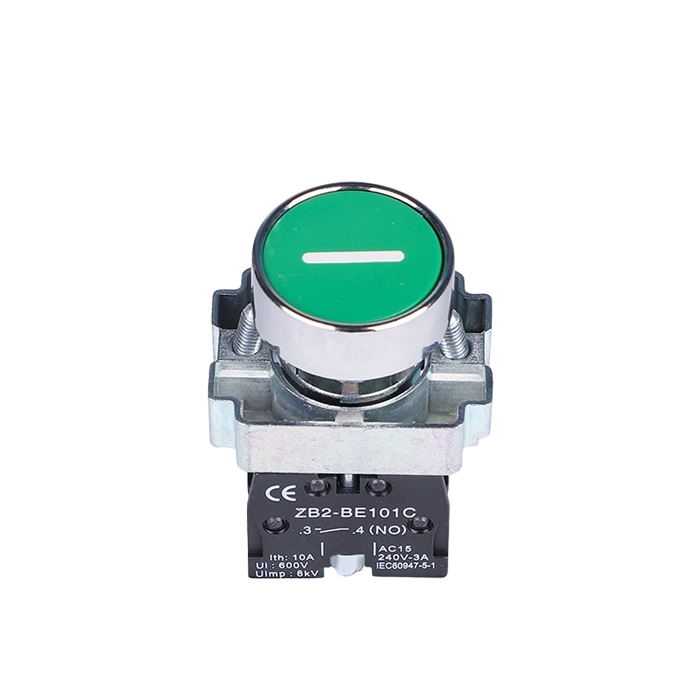
A pushbutton is a momentary switch that completes or breaks a circuit when pressed, allowing for user input in electronic devices. The Pushbutton START is a versatile and widely used component in electronics, enabling users to control circuits with a simple press. It is commonly found in applications such as user interfaces, control panels, and embedded systems.
Explore Projects Built with Pushbutton START
 Open Project in Cirkit Designer
 Open Project in Cirkit Designer
 Open Project in Cirkit Designer
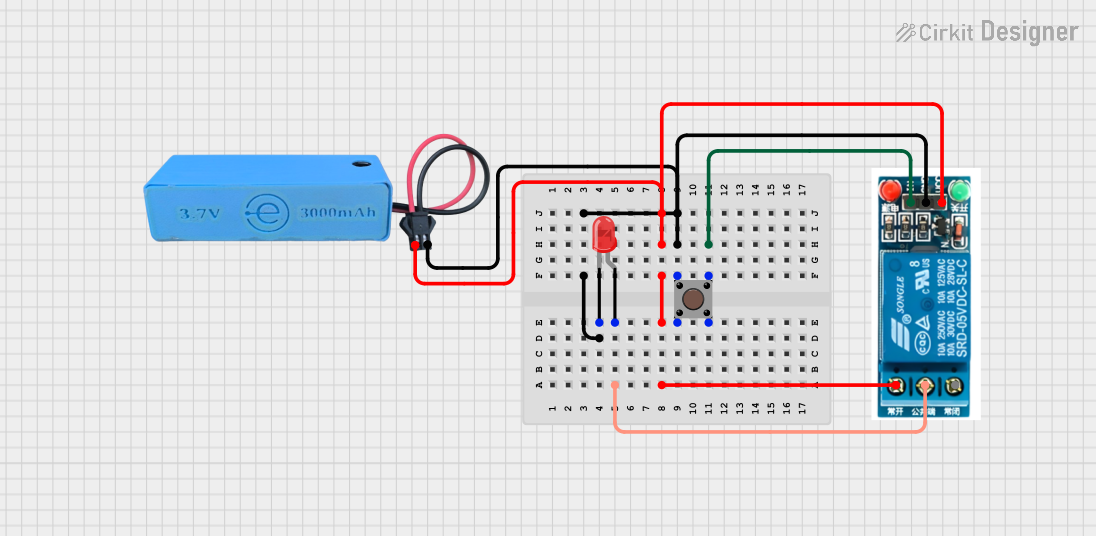 Open Project in Cirkit Designer
Explore Projects Built with Pushbutton START
Open Project in Cirkit DesignerOpen Project in Cirkit DesignerOpen Project in Cirkit DesignerOpen Project in Cirkit DesignerCommon Applications:
- Powering on/off devices
- Resetting microcontrollers or systems
- User input for embedded systems
- Triggering events in automation systems
- Prototyping and testing circuits
Technical Specifications
Key Technical Details:
- Type: Momentary pushbutton switch
- Contact Configuration: Normally Open (NO) or Normally Closed (NC), depending on wiring
- Operating Voltage: 3.3V to 24V (typical)
- Current Rating: 50mA to 500mA (depending on model)
- Contact Resistance: ≤ 50 mΩ
- Insulation Resistance: ≥ 100 MΩ
- Mechanical Life: 100,000 to 1,000,000 cycles
- Mounting Style: Through-hole or panel mount
- Debounce Time: Typically 5ms to 20ms
Pin Configuration and Descriptions:
The Pushbutton START typically has two or four pins, depending on the model. Below is the pin configuration for a standard 4-pin pushbutton:
| Pin Number | Label | Description |
|---|---|---|
| 1 | NO | Normally Open terminal |
| 2 | COM | Common terminal |
| 3 | NC | Normally Closed terminal (optional, not always present) |
| 4 | COM | Common terminal (connected internally to Pin 2) |
For a 2-pin pushbutton, the pins are simply connected to the NO and COM terminals.
Usage Instructions
How to Use the Pushbutton START in a Circuit:
Basic Connection:
- Connect one terminal of the pushbutton to the positive voltage supply (e.g., 5V).
- Connect the other terminal to the input pin of a microcontroller or circuit, with a pull-down resistor (typically 10kΩ) to ground. This ensures the input pin reads LOW when the button is not pressed.
Debouncing:
- Pushbuttons can produce noise or "bouncing" when pressed, causing multiple signals to be sent. Use a hardware debounce circuit (e.g., an RC filter) or software debounce logic to ensure stable operation.
Interfacing with Arduino UNO:
- The Pushbutton START can be easily connected to an Arduino UNO for user input. Below is an example code snippet:
// Example: Reading a pushbutton state with Arduino UNO
const int buttonPin = 2;  // Pin connected to the pushbutton
const int ledPin = 13;    // Pin connected to an onboard LED

void setup() {
  pinMode(buttonPin, INPUT_PULLUP); // Set button pin as input with internal pull-up
  pinMode(ledPin, OUTPUT);          // Set LED pin as output
}

void loop() {
  int buttonState = digitalRead(buttonPin); // Read the button state

  if (buttonState == LOW) { // Button pressed (LOW due to pull-up resistor)
    digitalWrite(ledPin, HIGH); // Turn on the LED
  } else {
    digitalWrite(ledPin, LOW);  // Turn off the LED
  }
}
Important Considerations:
- Always use a pull-up or pull-down resistor to ensure stable readings.
- Avoid exceeding the voltage and current ratings of the pushbutton.
- For high-frequency switching, consider using a debounce circuit or software logic.
- Ensure proper insulation and mounting to prevent accidental short circuits.
Troubleshooting and FAQs
Common Issues and Solutions:
Button Not Responding:
- Cause: Loose connections or incorrect wiring.
- Solution: Check all connections and ensure the pushbutton is wired correctly.
Multiple Signals When Pressed:
- Cause: Button bouncing.
- Solution: Implement a debounce circuit or software debounce logic.
Microcontroller Not Detecting Button Press:
- Cause: Missing pull-up or pull-down resistor.
- Solution: Add a pull-up or pull-down resistor to stabilize the input pin.
Button Feels Stuck or Unresponsive:
- Cause: Mechanical wear or debris inside the button.
- Solution: Clean the button or replace it if worn out.
FAQs:
Q: Can I use the Pushbutton START with a 3.3V system?
- A: Yes, the pushbutton is compatible with 3.3V systems as long as the current rating is not exceeded.
Q: How do I debounce a pushbutton in software?
- A: Use a delay or timing logic to ignore additional signals within a short time window (e.g., 10ms) after the first press.
Q: Can I use the pushbutton to control high-power devices?
- A: No, the pushbutton is designed for low-power signals. Use a relay or transistor to control high-power devices.
By following this documentation, you can effectively integrate the Pushbutton START into your electronic projects and troubleshoot common issues with ease.